
Reviewing a Page
Logging in to Your Website
- To keep our sites secure, all login instructions are now located in a single Box Note.
Sections
Before you can add your content, you need to first add a section. A section is a container that holds a component. (See below for more information on components.) You can select the number of columns in a section. You are also able to set how much spacing there is between components.
Adding a Section
Click Add section.
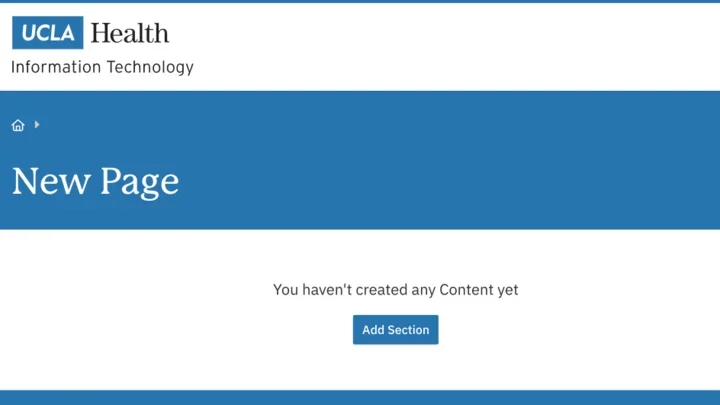
- Select the section with the appropriate number of columns.
- In the Constraints section, you can select Full Width if you would like your section to span the entire width of the page.
- In the Spacer section, you can select the amount of additional space you would like below the section.
Note: By default, there is no space below a section.
Components
You can use many types of components to customize your content. Once you have created your components, you can easily drag and move them to the new location. It is simple to copy and delete components in Layout Paragraphs. Learn more about how to use these features. (Refer to the Layout Paragraphs page for more detailed instructions.)
Adding a Component
Click the plus icon where you want to place the component.
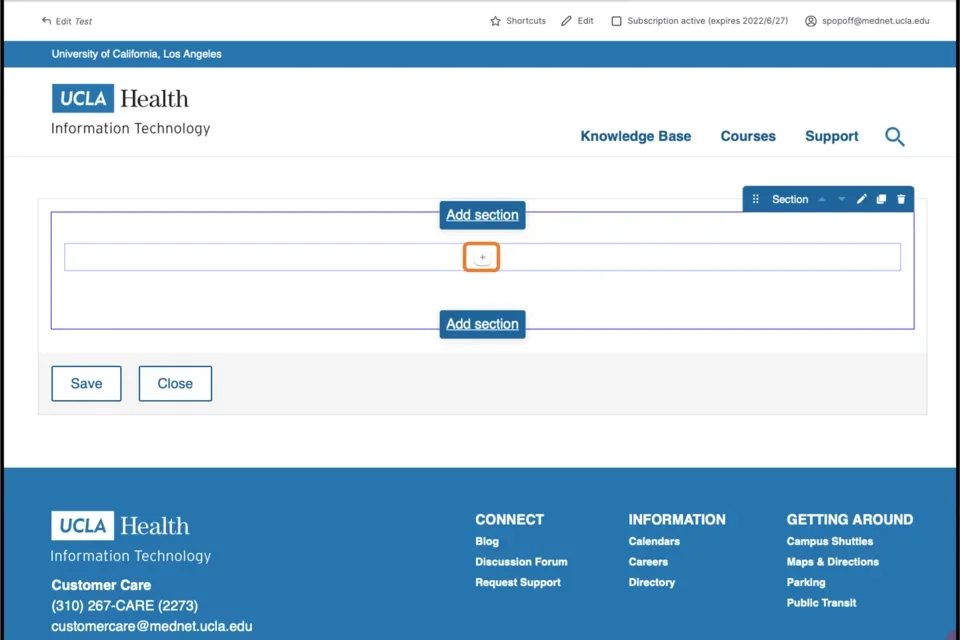
- Select the desired component.
- Complete the needed fields.
- Expand the Additional options section.
- Complete the needed fields.
- Click Save.
Saving
- Scroll to the very bottom of the page.
- At the bottom of the page, click Save.