CTA Card Component
Components
What is a CTA Card?
The CTA Card is our new, streamlined call-to-action component designed to make key actions stand out with clarity and visual polish. Replacing the older Call to Action module, the CTA Card brings improved usability, flexible layouts, and consistent styling that aligns with our updated brand identity. Whether placed in a Card Grid to guide users through multiple options or used as a wide, standalone banner to highlight a single important step, the CTA Card ensures your most important actions are easy to find and visually compelling.

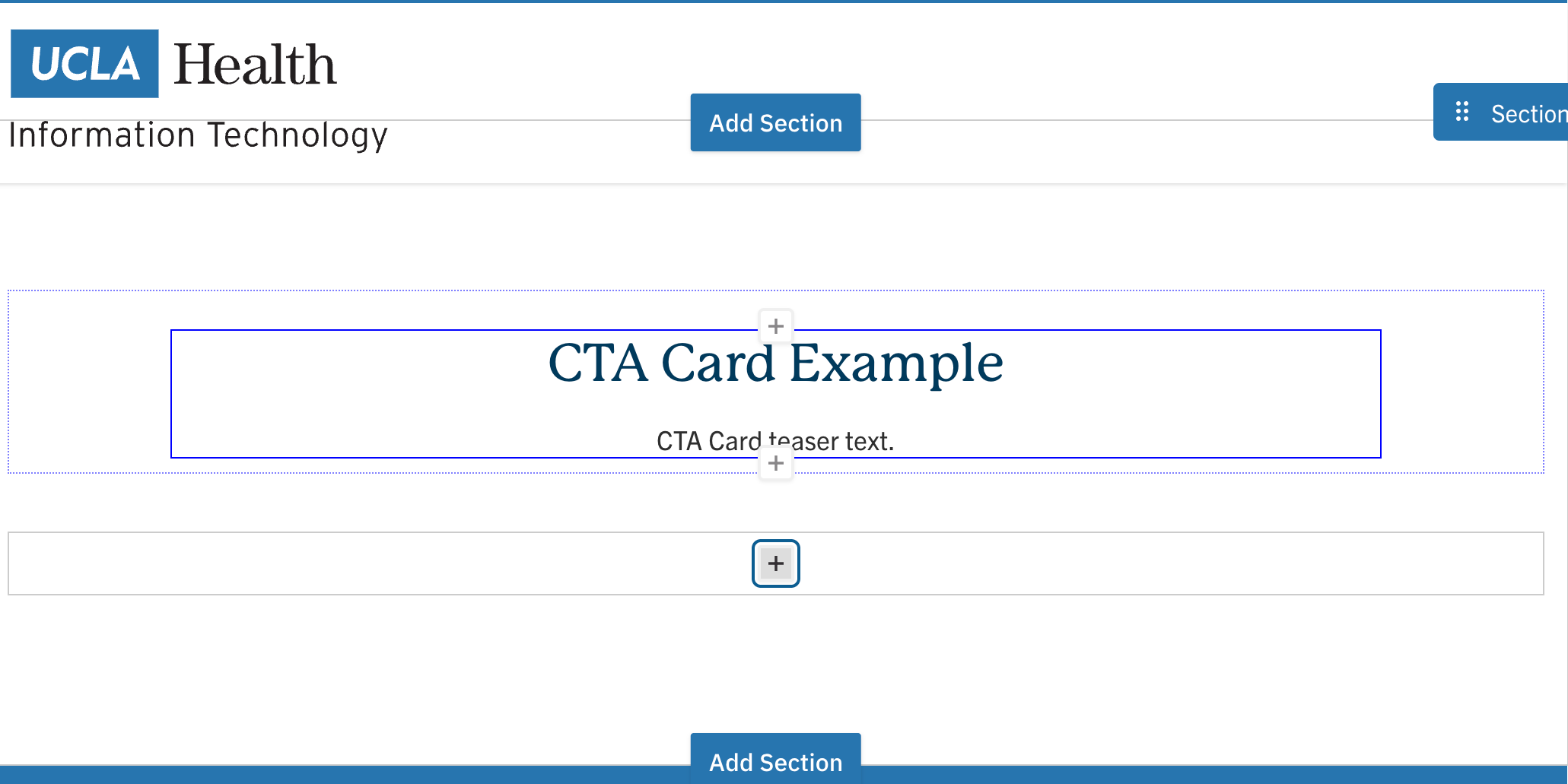
CTA Card Example
Wide CTA Card Example
Step-by-Step Instructions
The CTA Card can be added in two formats: within a CTA Card Grid or as a standalone CTA Card. Follow the steps below to create each layout.
CTA Card Grid (Multiple Call to Actions)
A CTA Card Grid is a layout option where multiple CTA (Call to Action) Cards are arranged in a structured grid. It’s commonly used on top-level navigation pages to present users with a clear set of choices or actions.
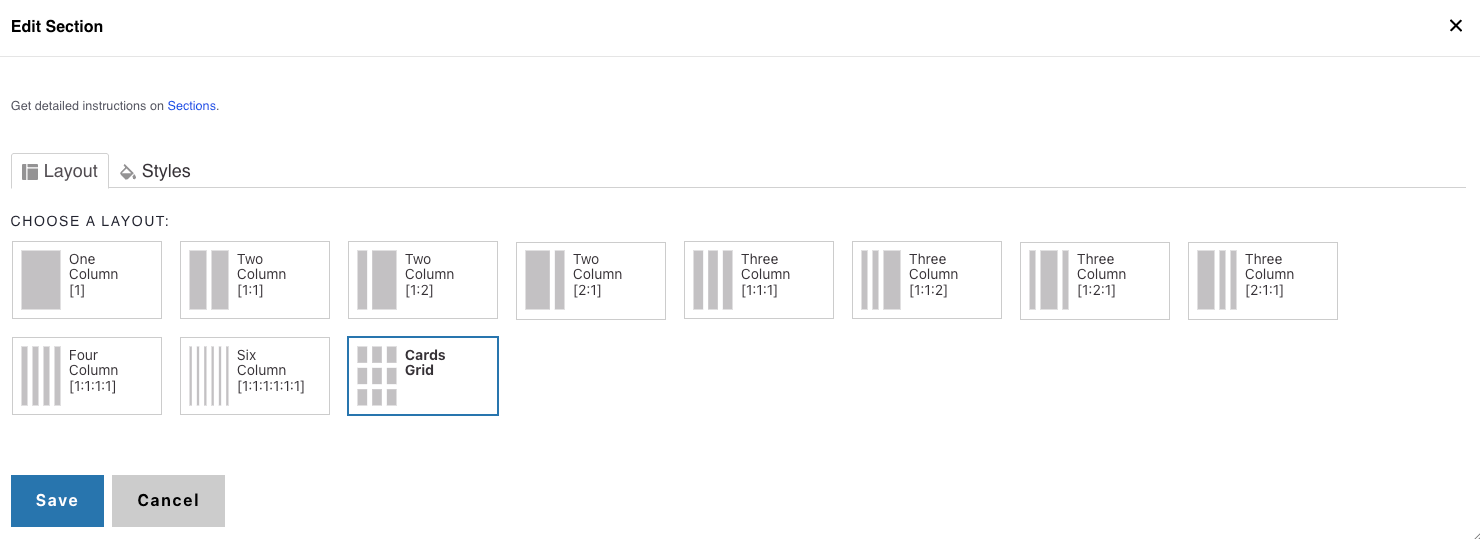
1. Add a Cards Grid Section
- Click the Edit link at the top of the page.
- Place your cursor where you want the CTA cards to appear.
- Click the plus icon.
- Select Cards Grid.


2. Add a Section Header
- Add a Section Header above your CTA cards.
- (Optional) Add a teaser that provides supporting context.
- In Styles, set the header level to H2.
3. Add CTA Cards
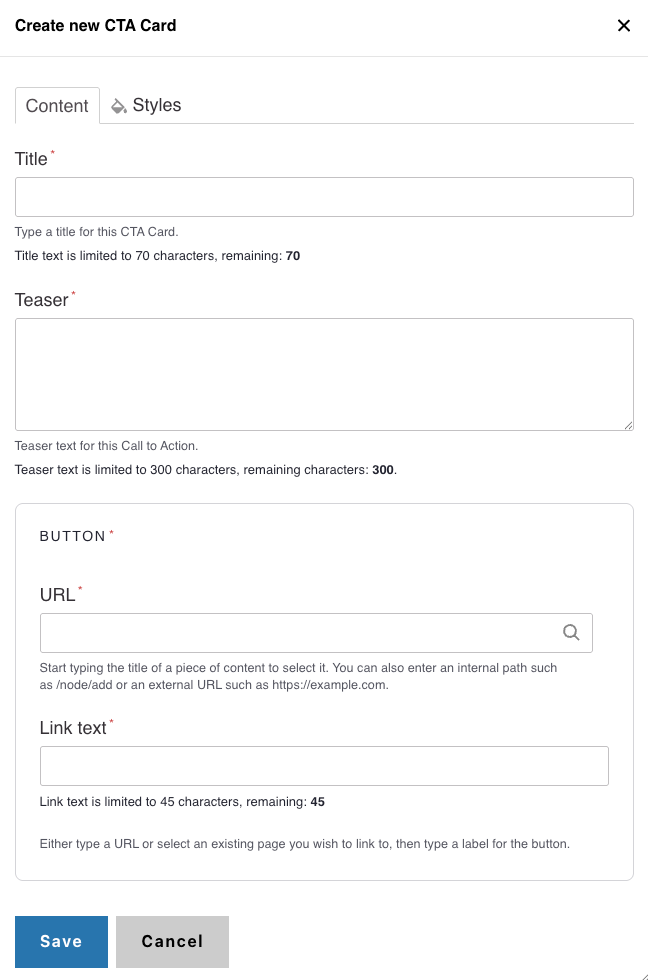
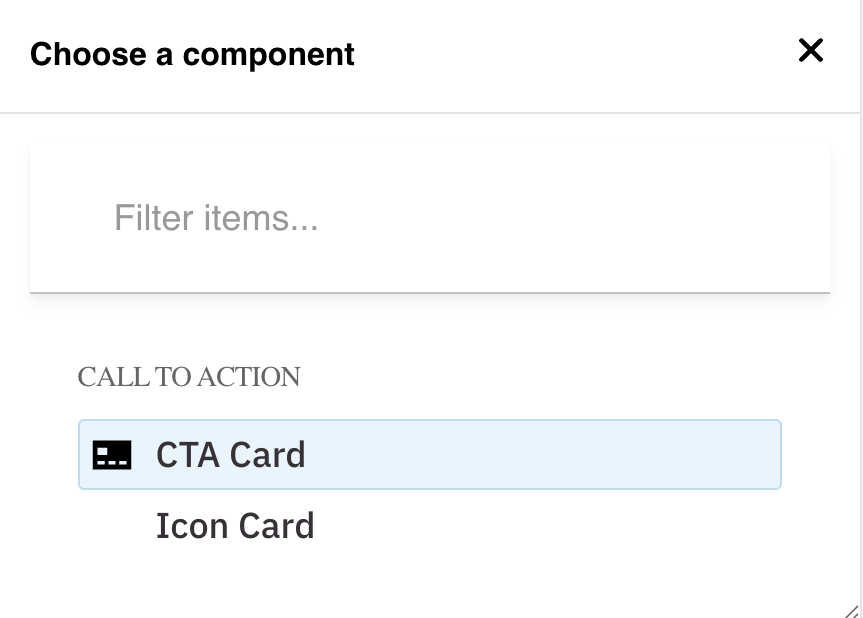
- Place your cursor below the Section Header and add a CTA Card.
- Add a Title (max 70 characters).
- (Optional) Add a Teaser (max 300 characters).
Button
- URL: Start typing the title of a piece of content to select it, or enter an internal path (e.g., /node/add) or an external URL.
- Link Text: Provide a clear, contextual action (e.g., “Visit the ABC Lab”).
- Avoid generic phrases like Learn more or Read more.
- Max 45 characters.
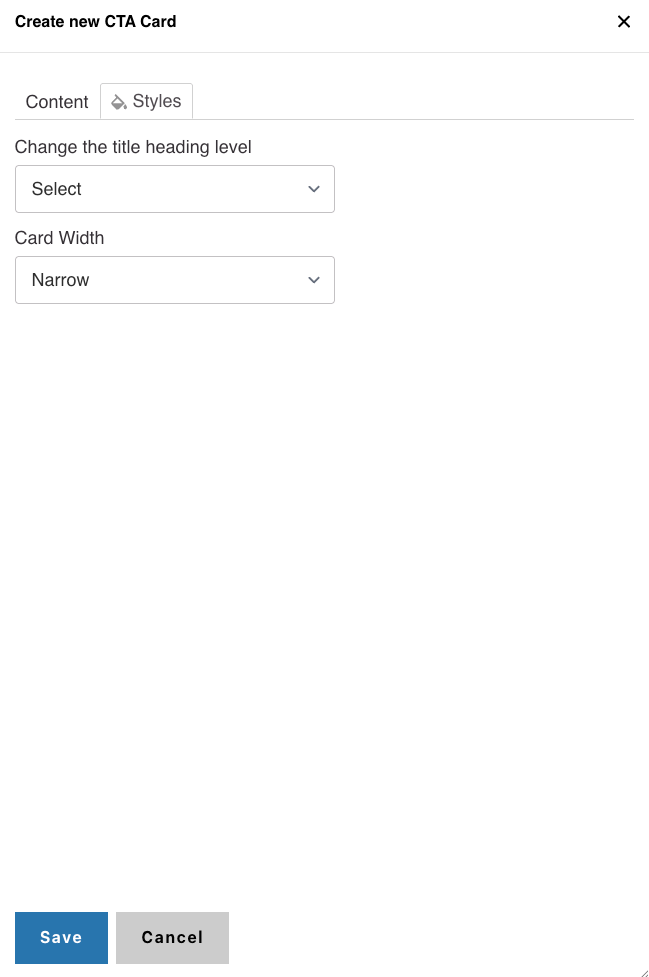
Styles
- In the Styles tab, select H3 if the cards appear under an H2 Section Header.
- Adjust the header level as needed based on page hierarchy.
4. Add Additional CTA Cards
- Add at least two more CTA Cards using the steps above. For the best visual layout, we recommend adding cards in sets of three (3, 6, or 9).
Wide CTA Card (One Call to Action)
Use these instructions when placing a single CTA Card on a one-column section.
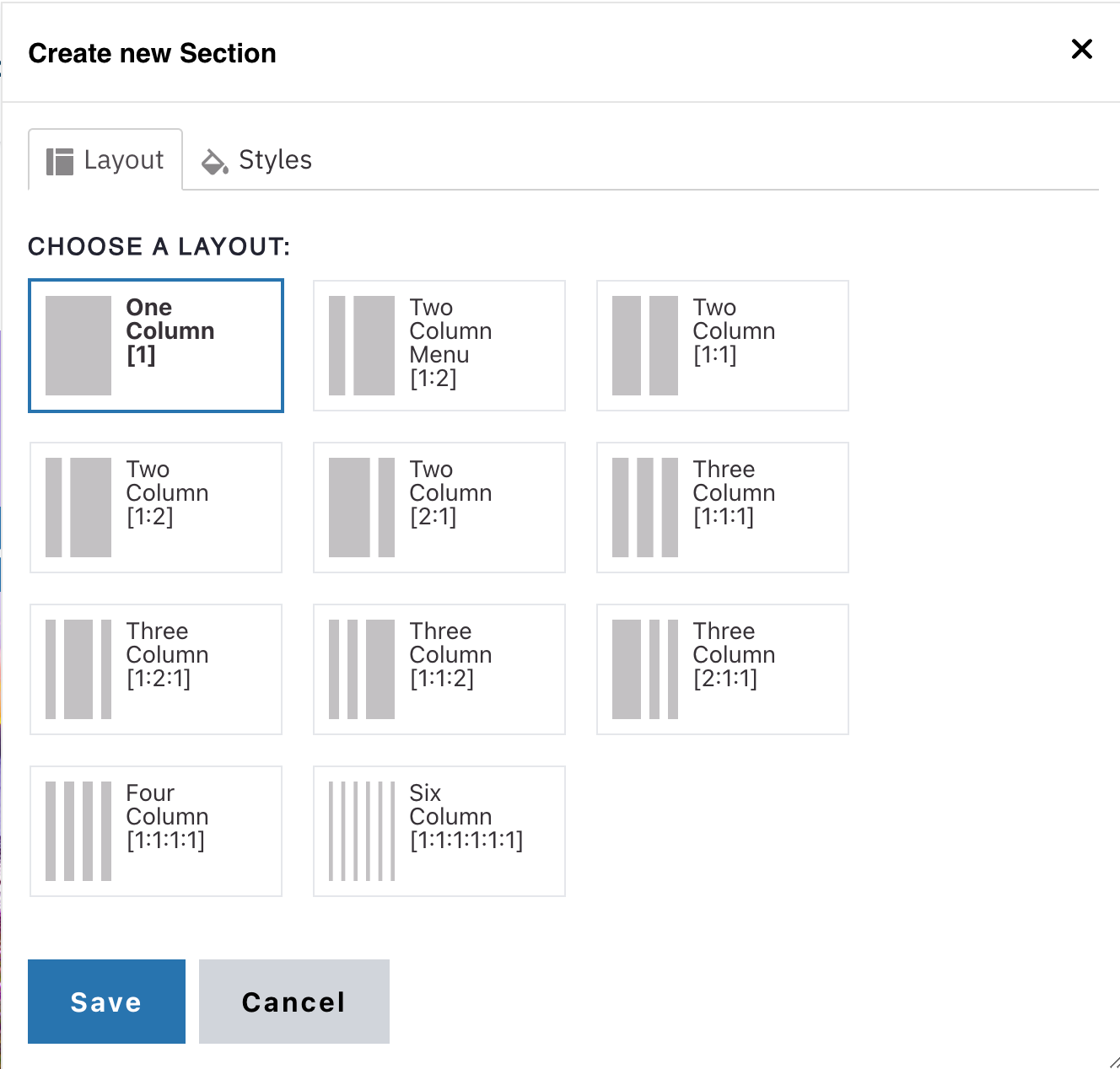
1. Add a One Column Section
- Click the Edit link at the top of the page.
- Move your cursor where you want to place the CTA Card.
- Click the plus icon.
- Select One Column.
2. Add the CTA Card
- Move your cursor within the One Column section.
- Click the plus icon and select CTA Card.
- Add a Title (max 70 characters).
- (Optional) Add a Teaser (max 300 characters).
Button
- URL: Start typing the title of a piece of content, or enter an internal path or external URL.
- Link Text: Provide a clear, contextual action (e.g., “Visit the ABC Lab”).
- Avoid generic link phrases.
- Max 45 characters.
Styles
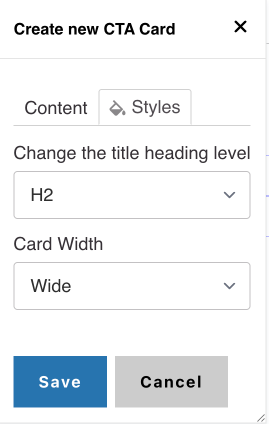
- In the Styles tab, select H2 since the CTA Card is used as a standalone call to action.
- Set Card Width: Wide
Alert
Only Site Administrators can add background colors.
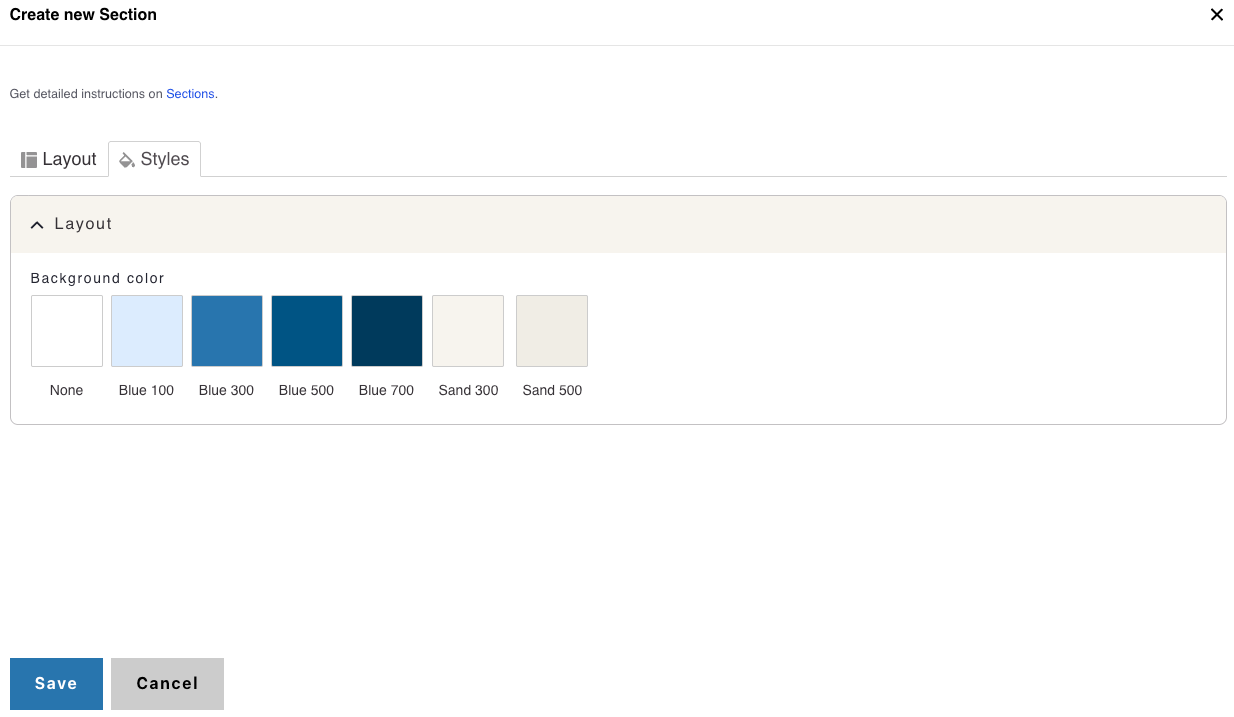
Background Colors
We recommend working with a Site Administrator to apply background colors to CTA Card Grids and standalone CTA Cards when you need them to stand out.
Note: Background colors can be applied only within One Column and Card Grid sections.
How to Apply a Background Highlight
- Open the Styles tab.
- Choose one of the approved background colors:
- None (default)
- Blue 100
- Blue 300
- Blue 500
- Blue 700
- Sand 300
- Sand 500