
Pages
Design Visually Appealing Content
Creating a Page
Adding a Page
What is a Page
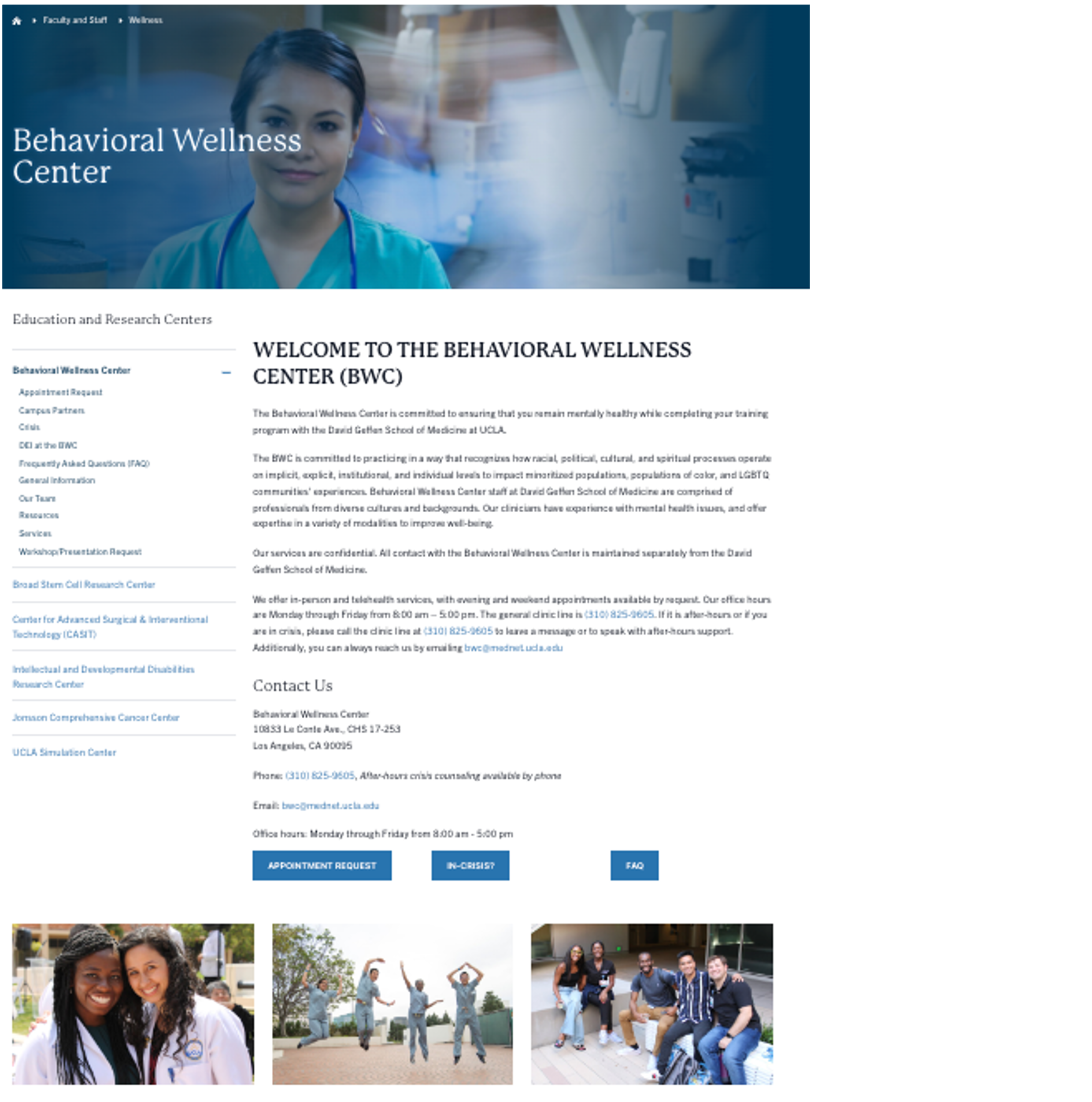
The Page content type is used for static content that can be (but not required to be) linked into the main navigation bar. This is one of the most used content types and can be very flexible.
To create a Basic Page:
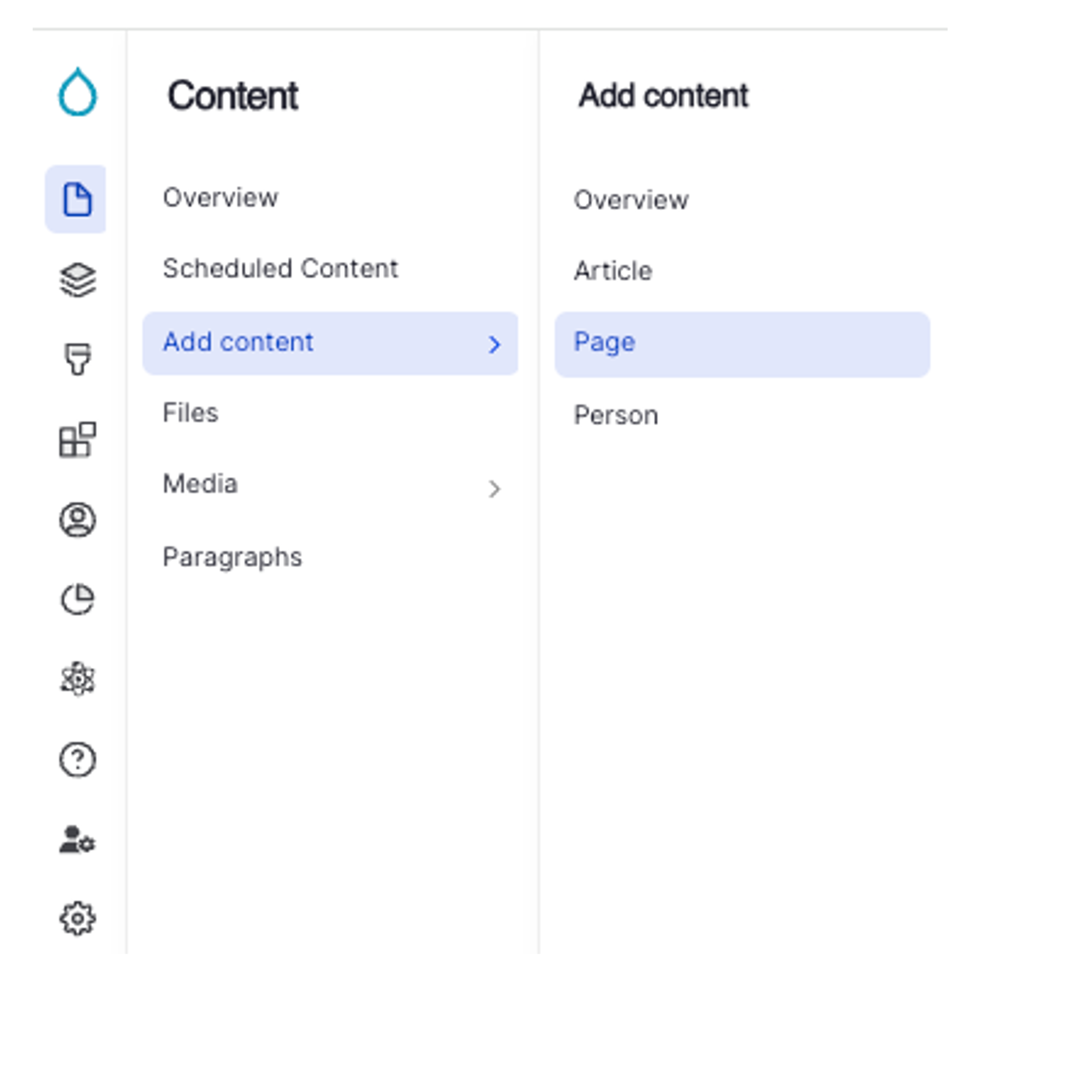
- Click Content on the second panel.
- Click Add content button.
- Select Page from the list of content types.
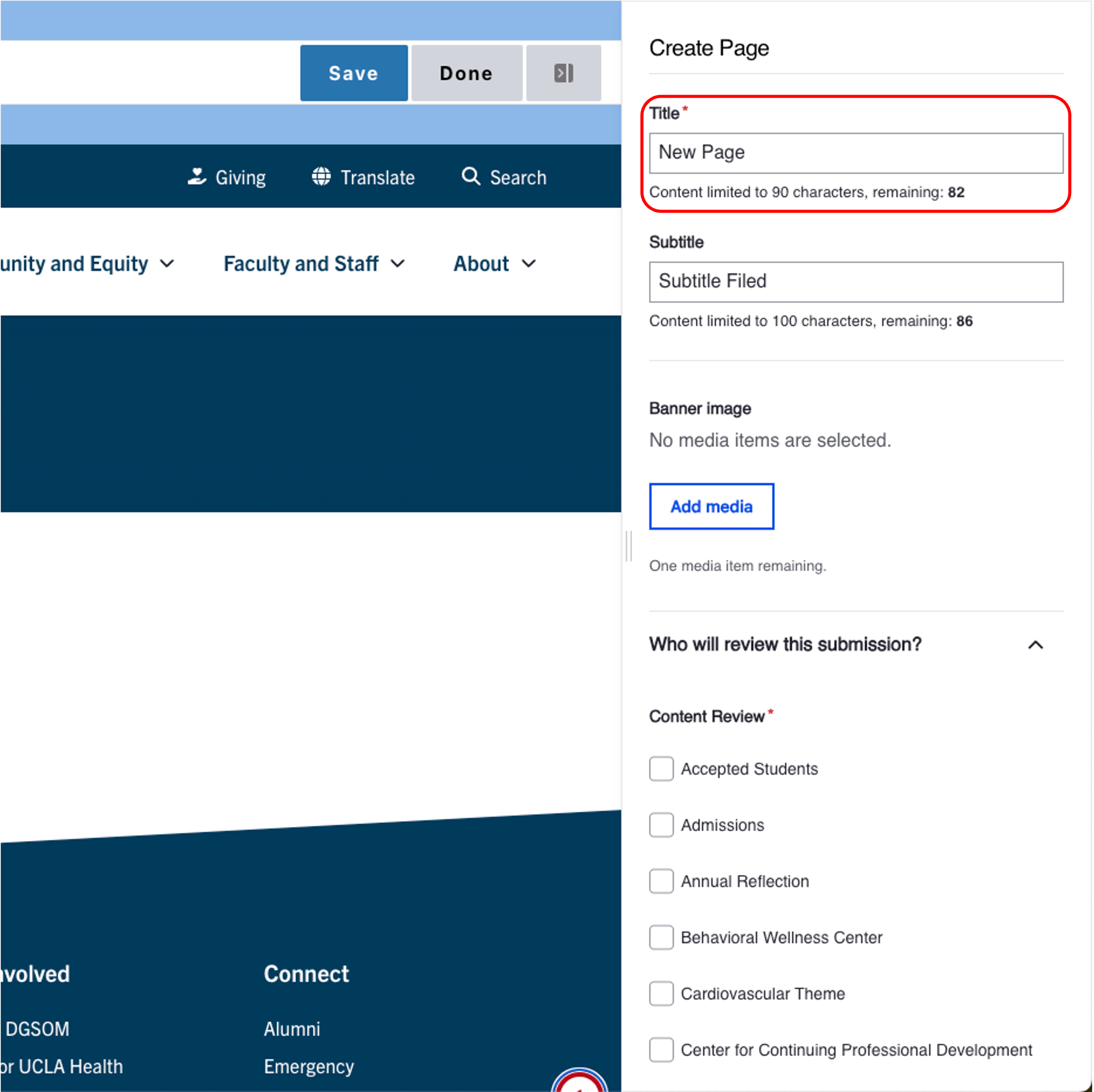
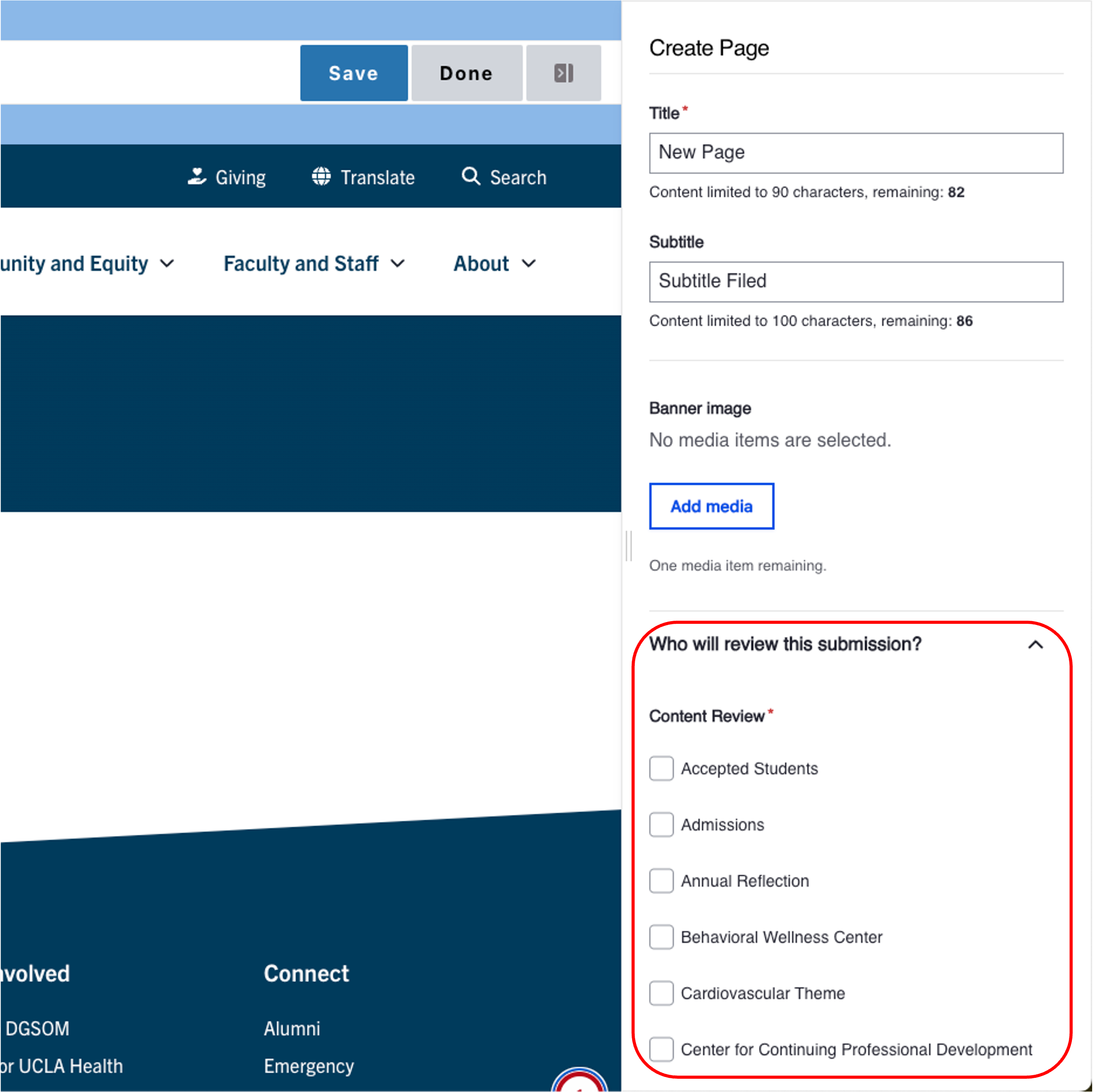
- Title [required] - The text entered in the title field will be included in the breadcrumbs and will become the page's URL unless otherwise configured.
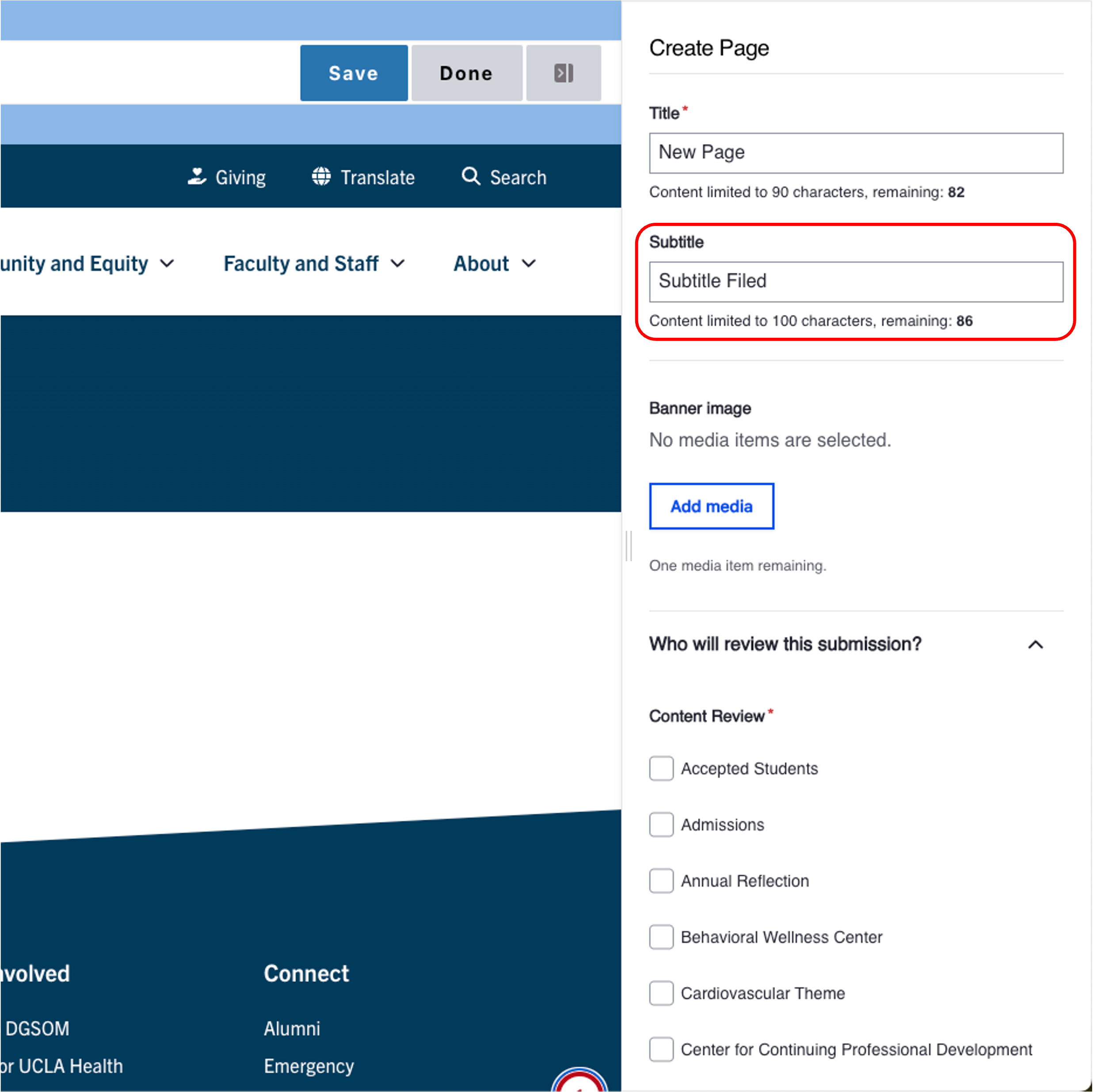
- Subtitle [recommended] Add a subtitle.
- Select Who Will Review This submission? [required] For Sites with site access enabled Only
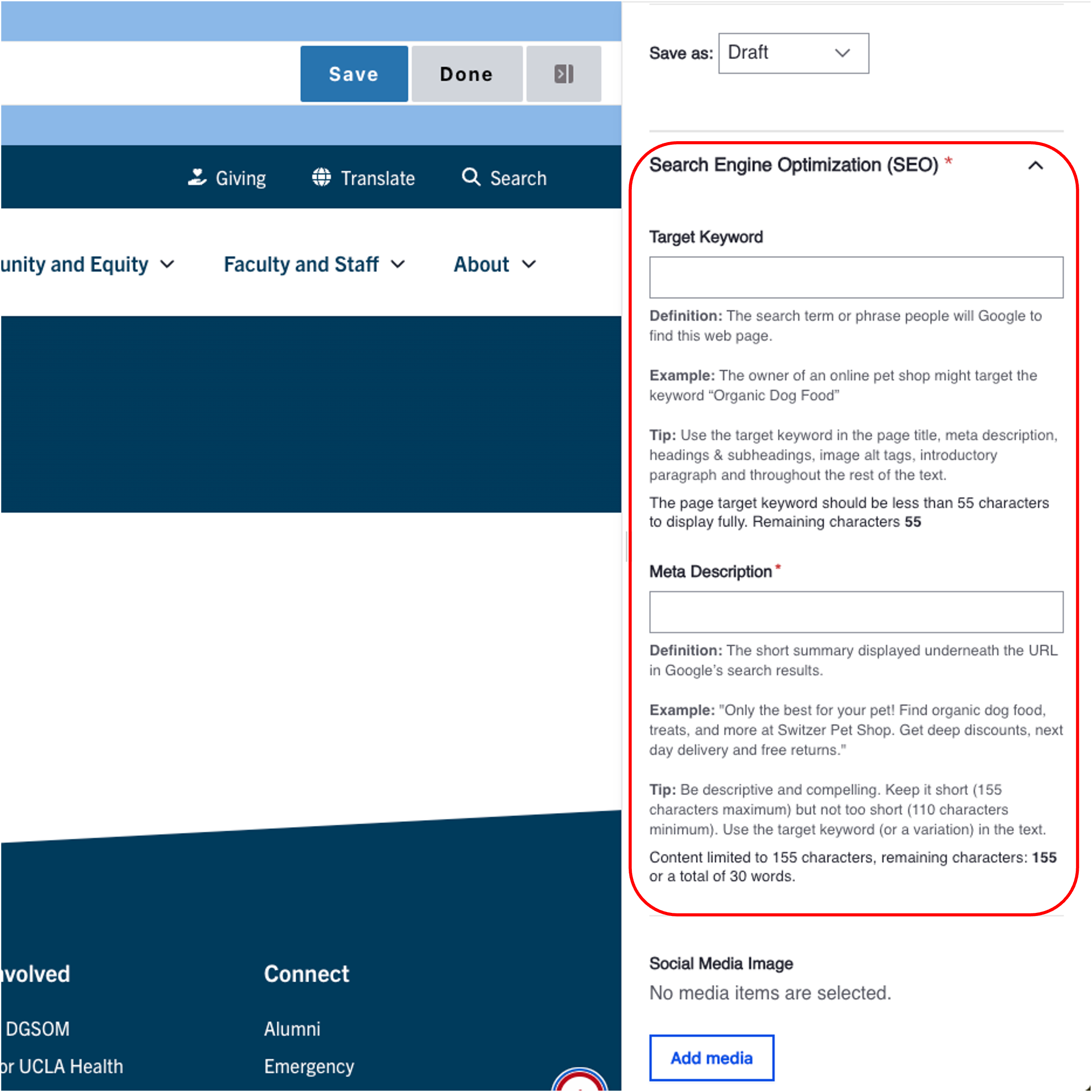
- Search Engine Optimization (SEO)
- Target Keyword: The search term or phrase people will Google to find this web page.
- Meta Description: [required] The short summary displayed underneath the URL in Google’s search results.
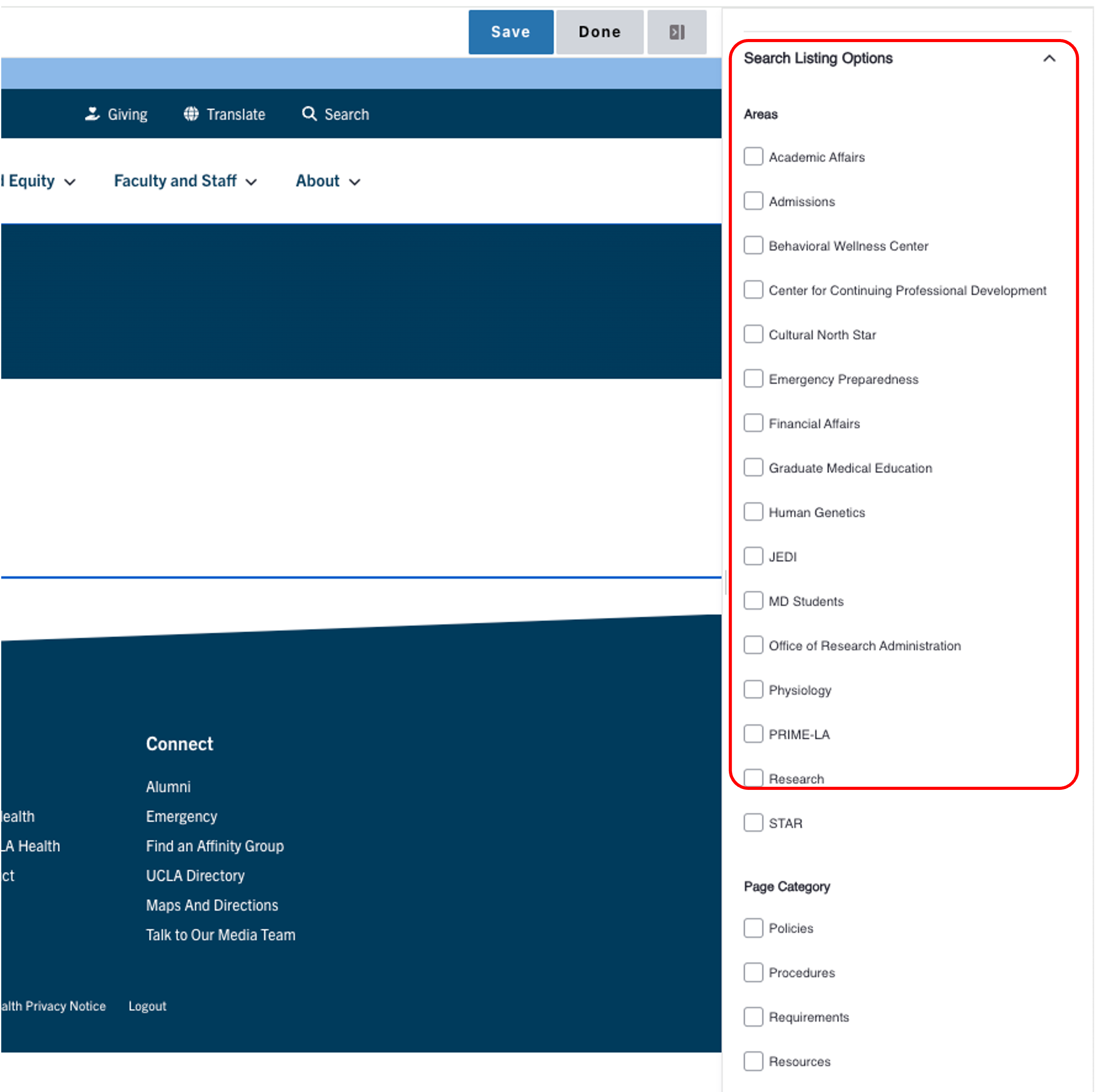
- Select Search Listing Options [recommended] - Once you have made your selections, the categories will appear as part of the faceted search. This means that site visitors can easily filter to your content.
- Areas & Page Category: Used as a page search results.
- Page Tag: Adds topics to your page.
- To have additional taxonomy terms added, please contact your Site Administrator or fill out a Support Form.
- Add the desired component and learn more about the available options.
- Click Save to publish the page.
Adding Your Page to the Menu
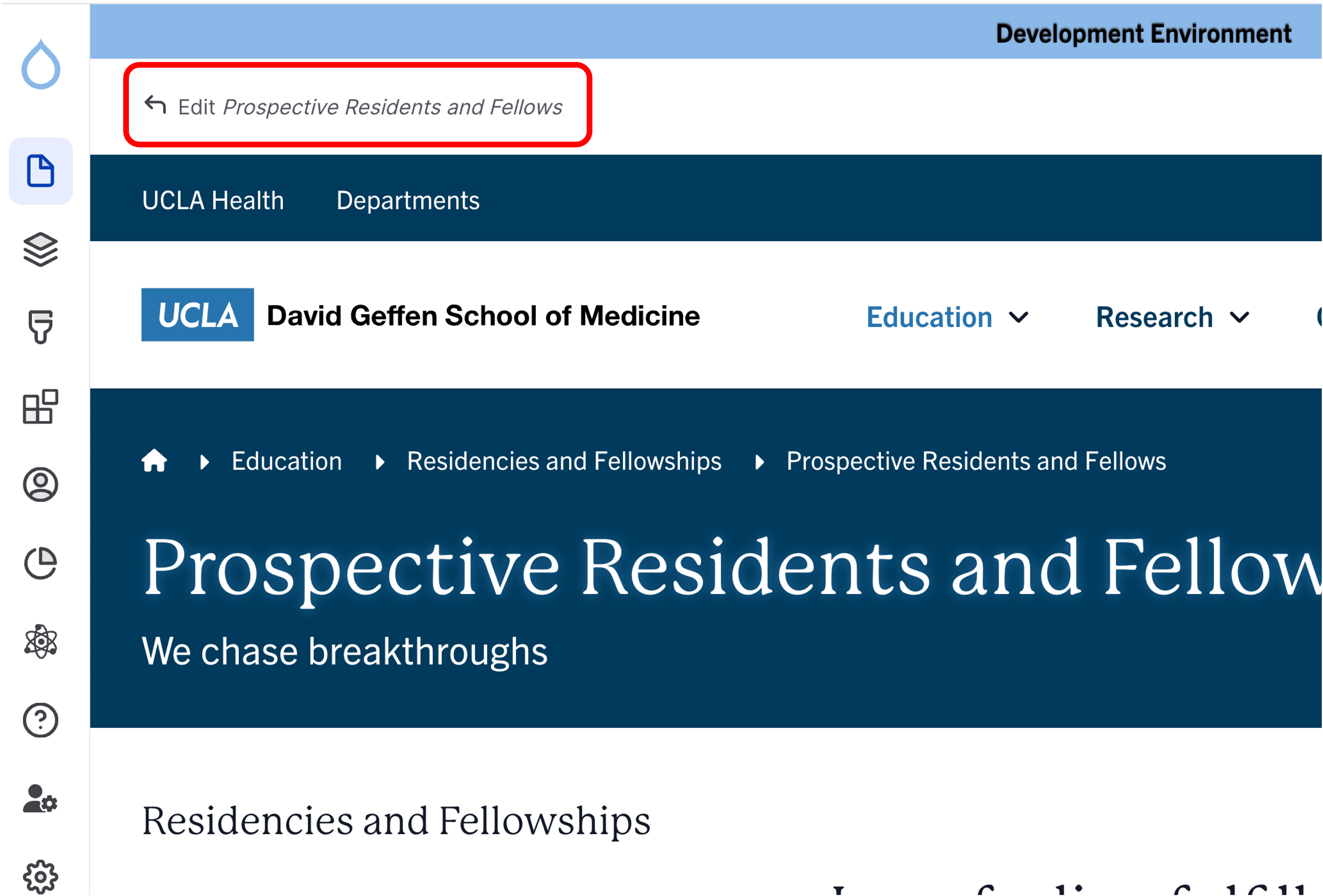
- Go to your page.
- Click the edit link at the top of the page.
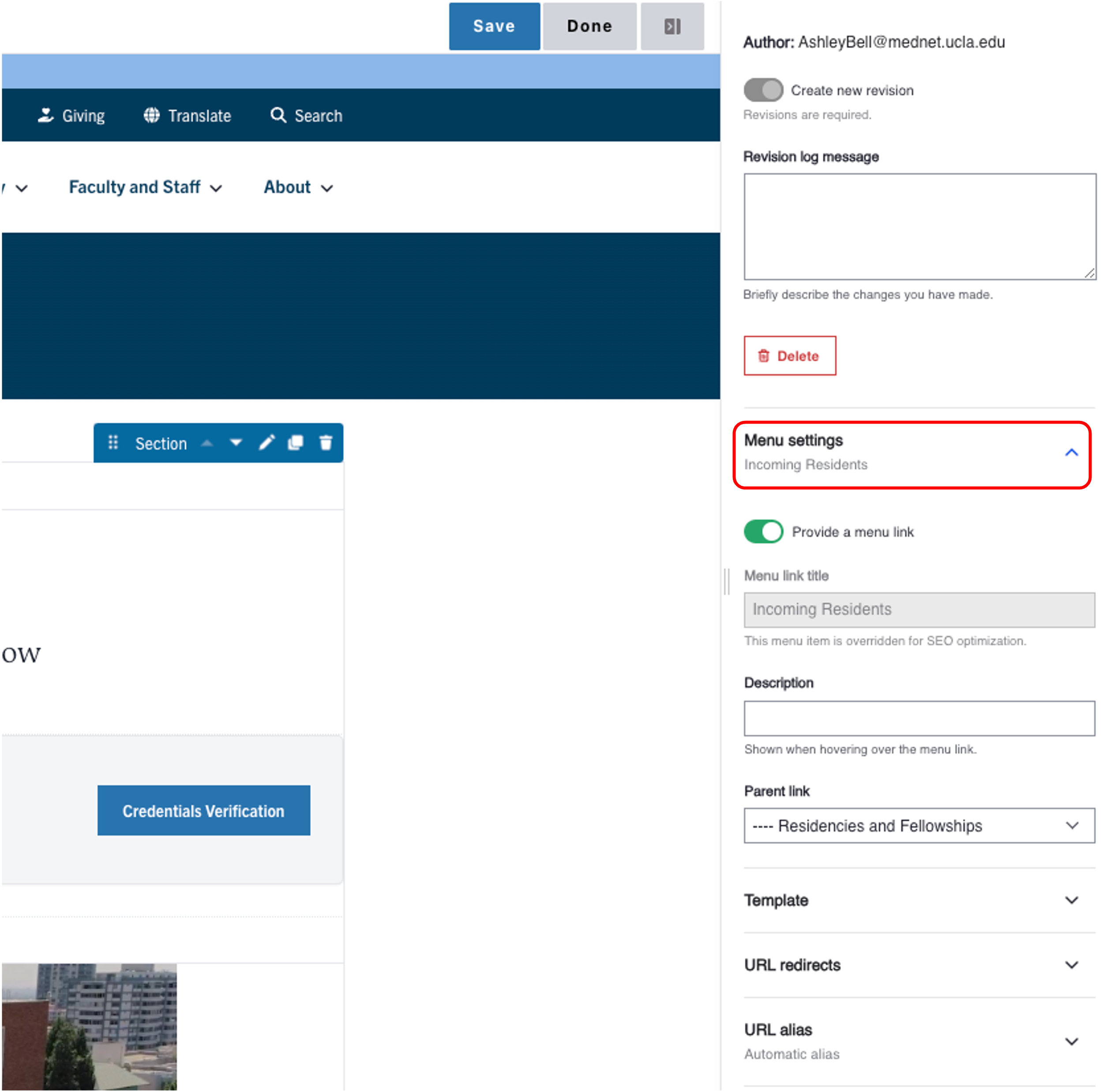
- Expand the Menu Settings in the Additional Options section.
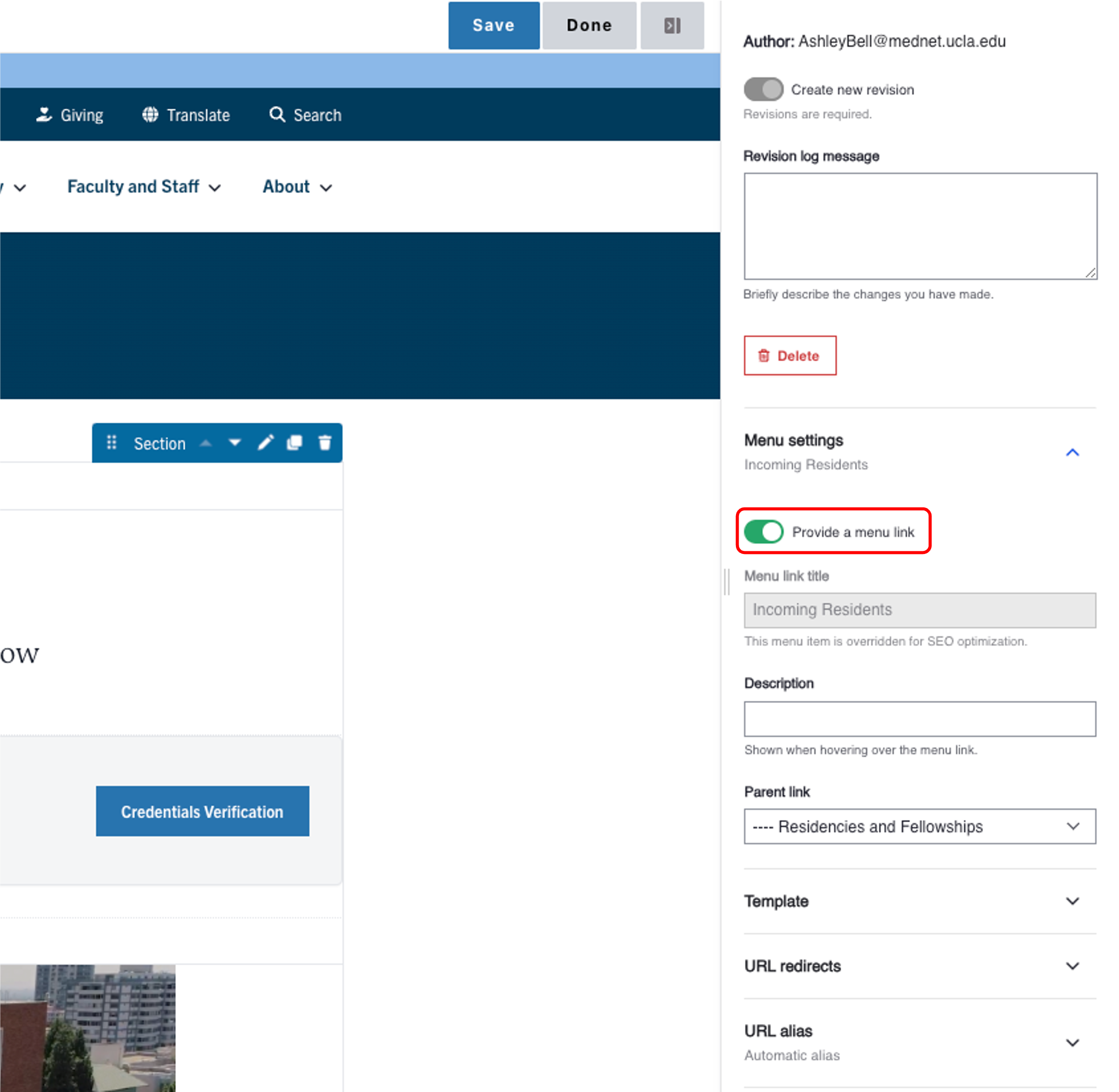
- Toggle the Provide a menu link.
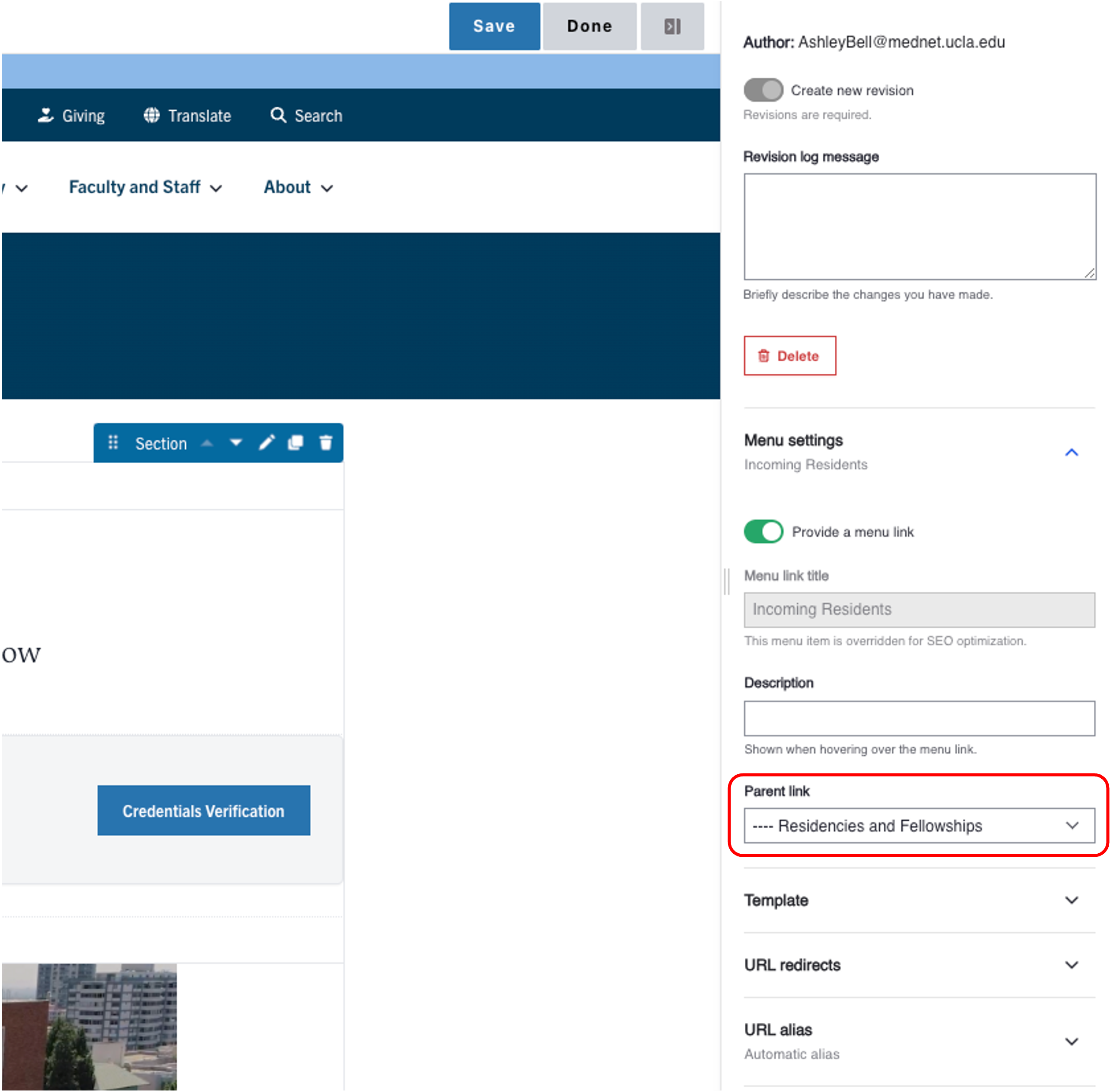
- Select the Parent Link dropdown menu. If this is not selected, the page will appear on the top navigation.
- Select the appropriate Parent page in the correct page structure location.
- Scroll to the bottom of the page and click Save.
Components
You can use many types of components to customize your content. The instructions on how to create a component provide an example of what each component looks like, followed by details about how to create and format a components. While UCLA Health has many different themes or looks to its sites, the instructions below are the same regardless of the theme used on your site. Branding and formatting will be updated based on the theme in which you create the content.
Once you have created your components, you can easily drag and move them to the new location. It is simple to copy and delete components in Pages Learn more about how to use these features see bottom of the page.
See the full list of Components
Managing Components That Are Already Created
If you would like to reuse a component on multiple pages, please visit the 'Reusable Content' page.