Event Calendar
Creating Components
What is an Event Calendar?
The Event Calendar is used to display your upcoming events on your page. Visitors can navigate your calendar by scrolling through months with the arrow keys or highlight the current day by clicking the "today" button. Visitors can also choose how they view your events by toggling between a calendar or list view. Clicking the name of the Event will take visitors to the event listing itself for more details.

Event Calendar Example
Step-by-Step Instructions
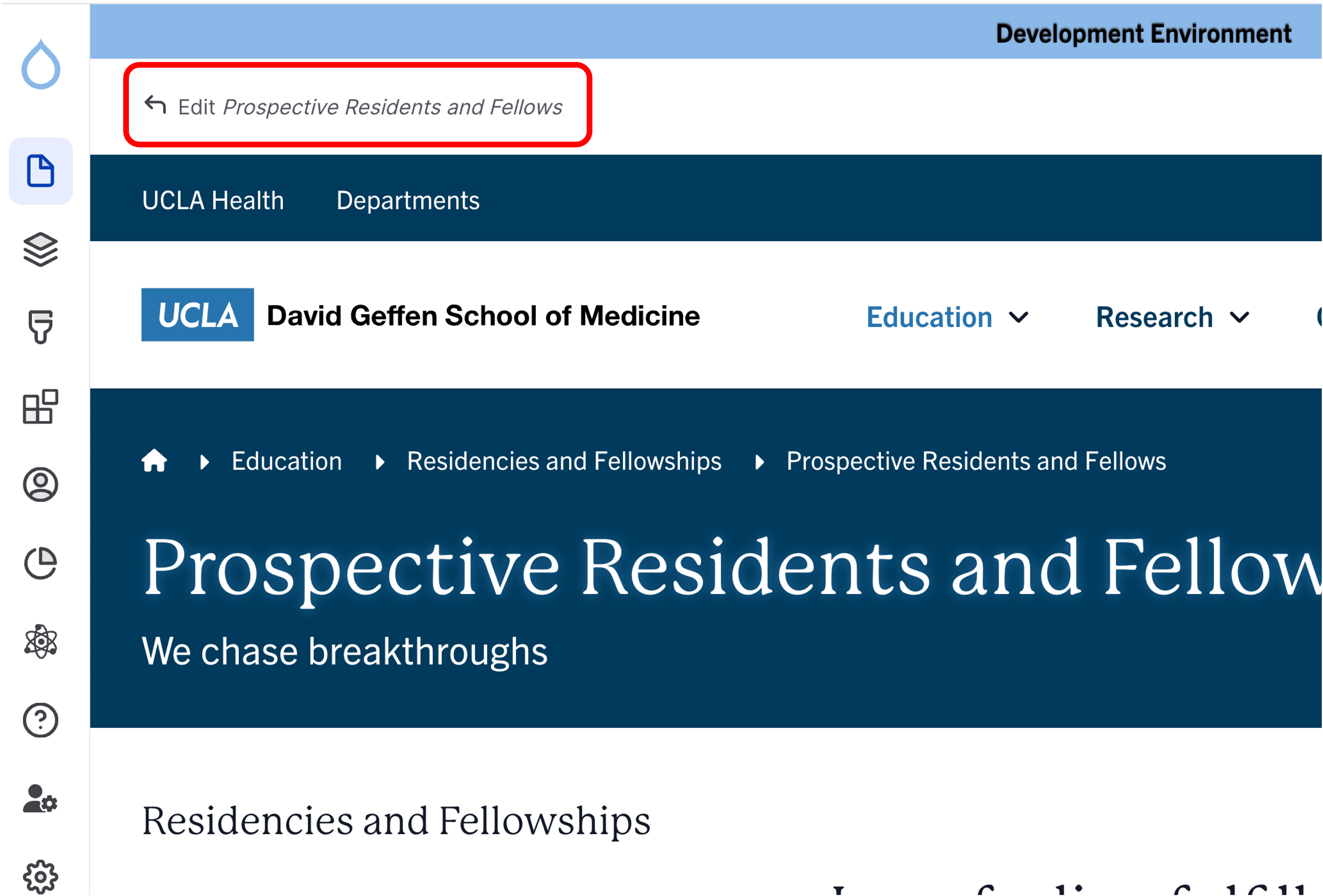
- Click the edit link at the top of the page
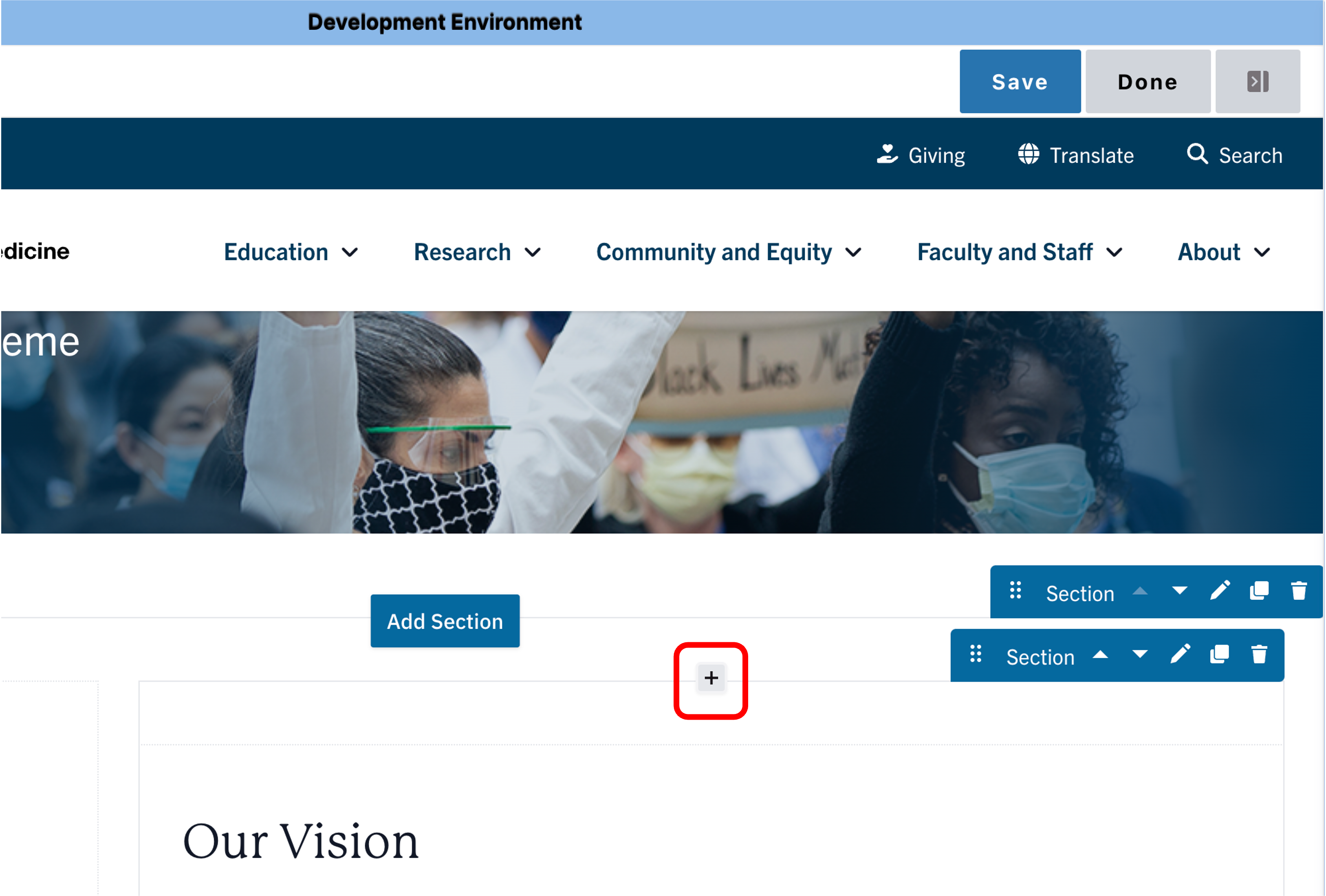
- Move your cursor where you want to place the component.
- Click the plus icon.
- Select Event Calendar from the menu

Content
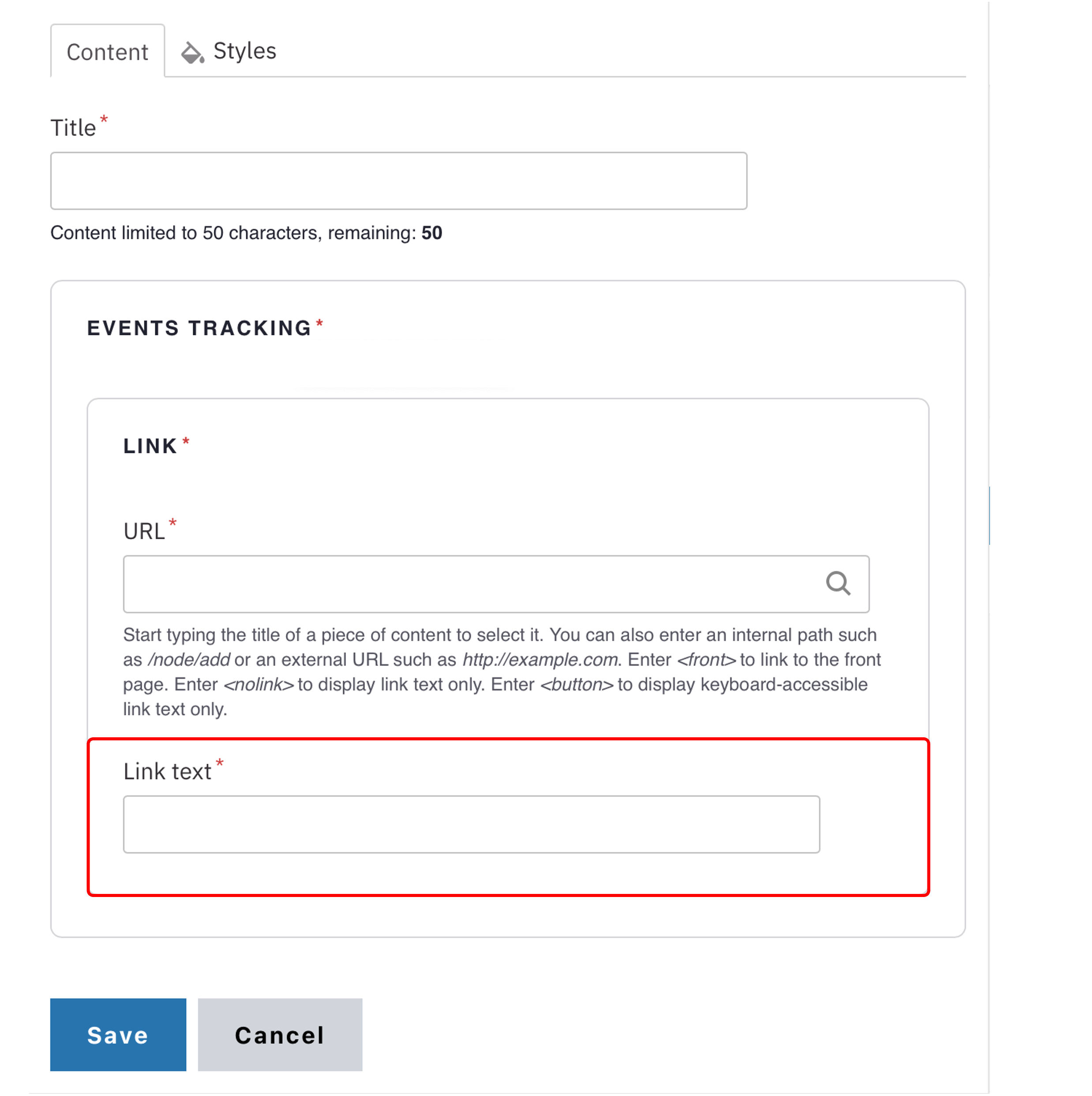
- Add a custom Title for your Event Calendar. (required)
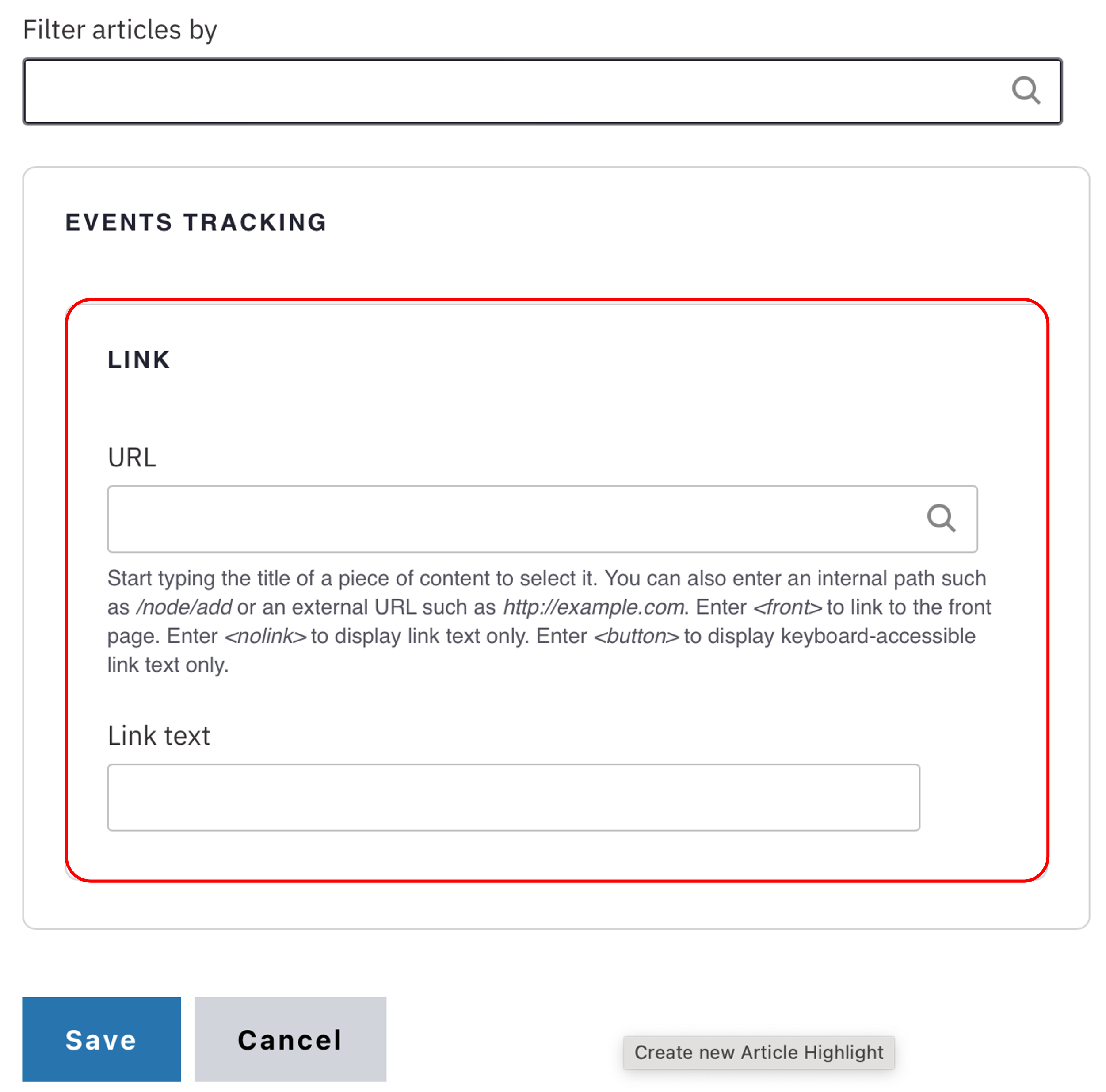
Note: Title field text is limited to 70 characters. - Optional: Filter the events displayed in the view. In the Filter events by field, start by typing an event type, category, topic, or tag. Select the term.
- Optional: Add a URL to the event calendar component. Start typing the title of a piece of content to select it. You can also enter an internal path such as /node/add or an external URL such as http://example.com.
- Add Link Text for the URL.
Note: Link text is limited to 45 characters.


Save
- Click Save.
- Scroll to the top of the page and click Save.
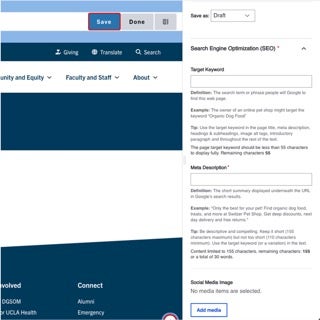
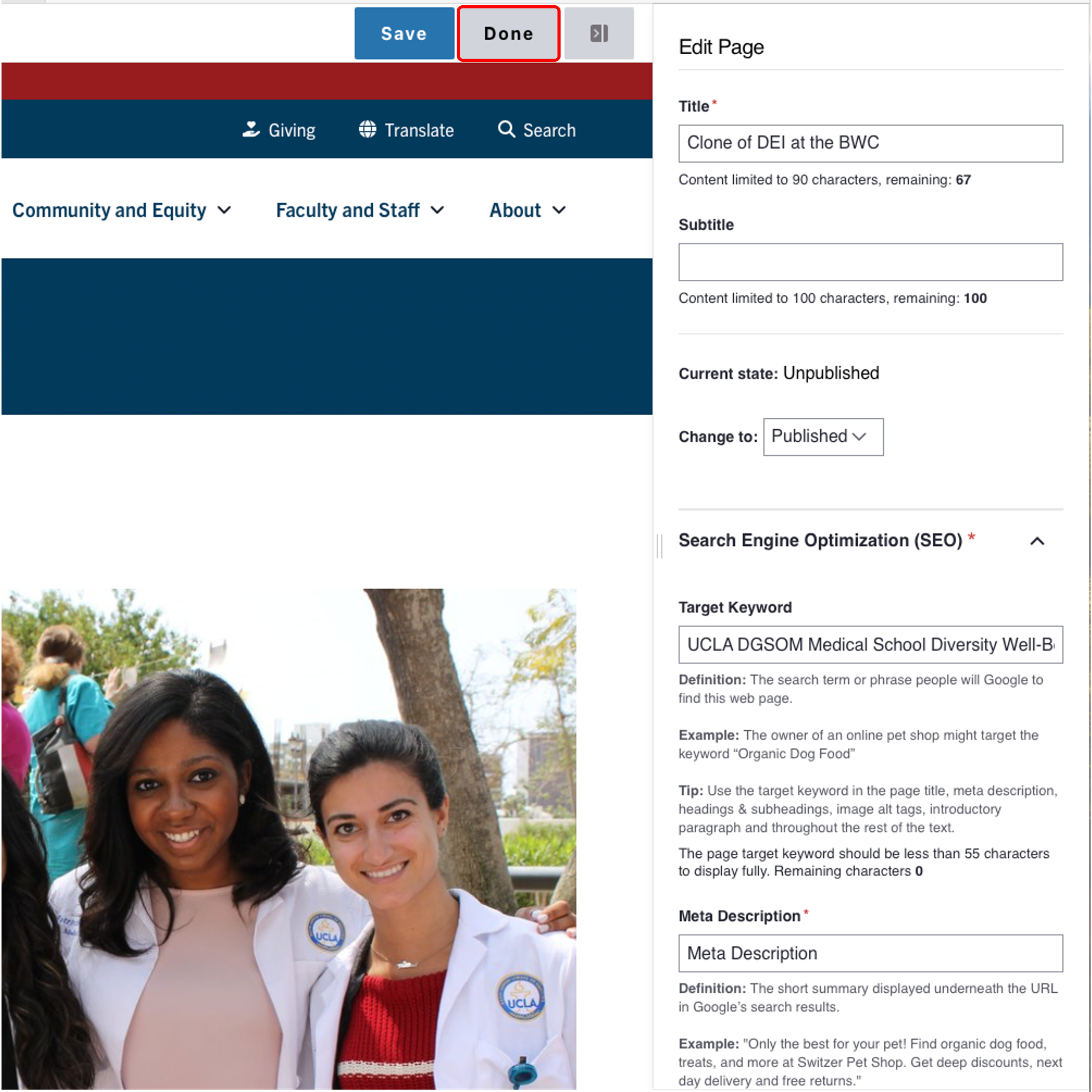
- Click the Done button beside the save button.
Note: This will display the page in the closest representation of how site visitors will view it. All links and actions that are disabled in editing mode will be functional now.