Working with Documents
What is a Document?
The Document media type is used sparingly to upload and manage PDF files. To comply with Americans with Disabilities Act (ADA) requirements, only legally mandated and fully remediated documents may be published on the website.These documents are stored in the Media Library, making them easy to reuse across your site.
PDF Accessibility Requirements
When uploading PDF documents, editors must ensure they do not contain PHI, PII, or restricted information. Additionally, all PDF must be remediated to meet the WCAG 2.0 Guidelines (Web Content Accessibility Guidelines).
Unless a document is legally mandated to appear on the website, avoid using PDFs whenever possible. Instead, create a webpage and incorporate the content into your site structure to eliminate the need for PDF remediation. Failure to comply may violate UCLA policy and federal law, potentially resulting in legal liability.
If you still want to upload a document, please refer to the UCLA Disabilities and Computing Office for remediation.
Alternatives to PDF Documents
- Create pages or articles to present content directly on the website.
- Use Qualtrics for forms and surveys.
- Use Box for file sharing:
- Upload your files to a Box folder.
- Set the folder’s access to everyone within UCLA.
- Link to the Box folder from your webpage (ideal for non-PDF documents).
- If these alternatives don’t meet your document needs”
Additional Resources
How to Upload a PDF
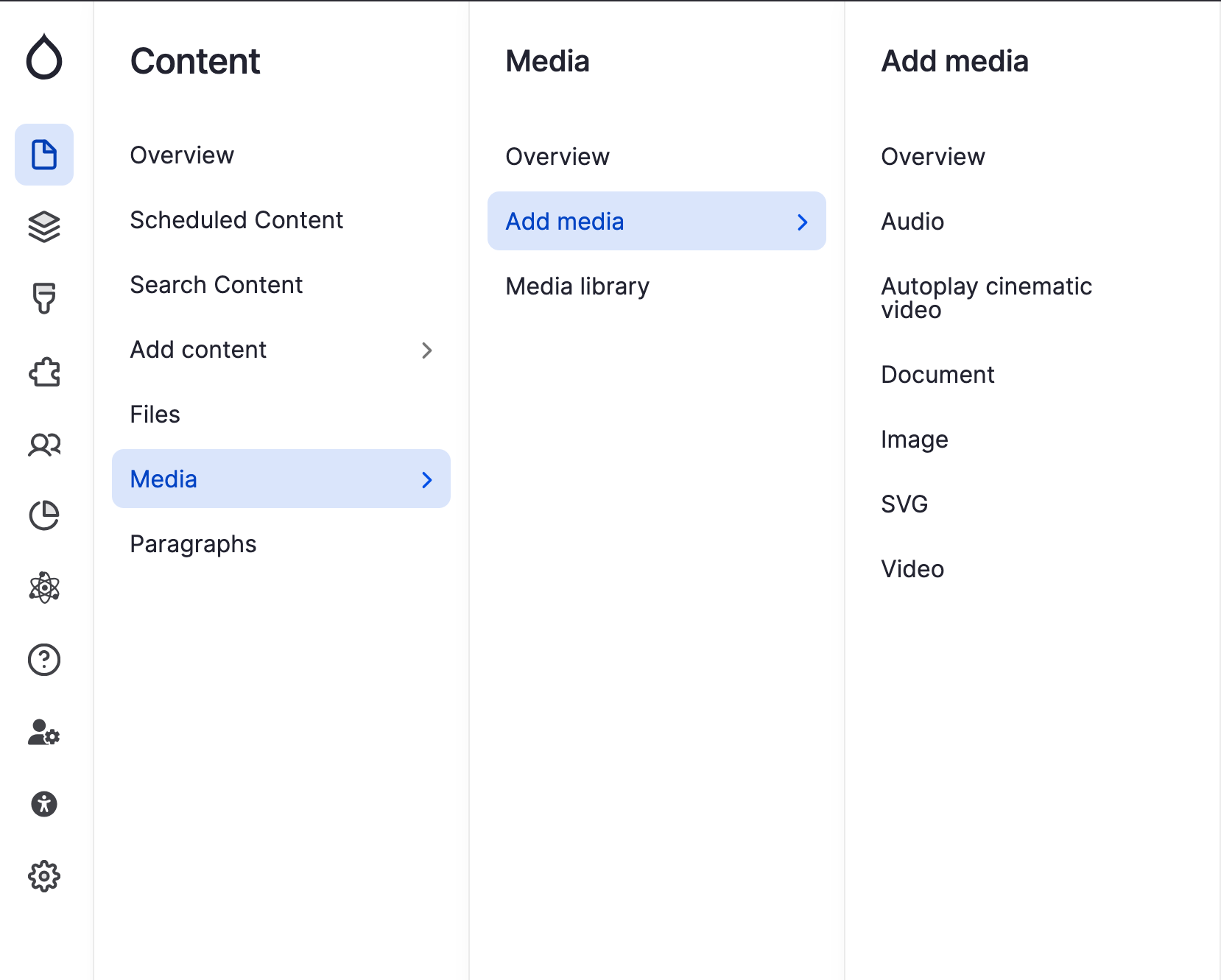
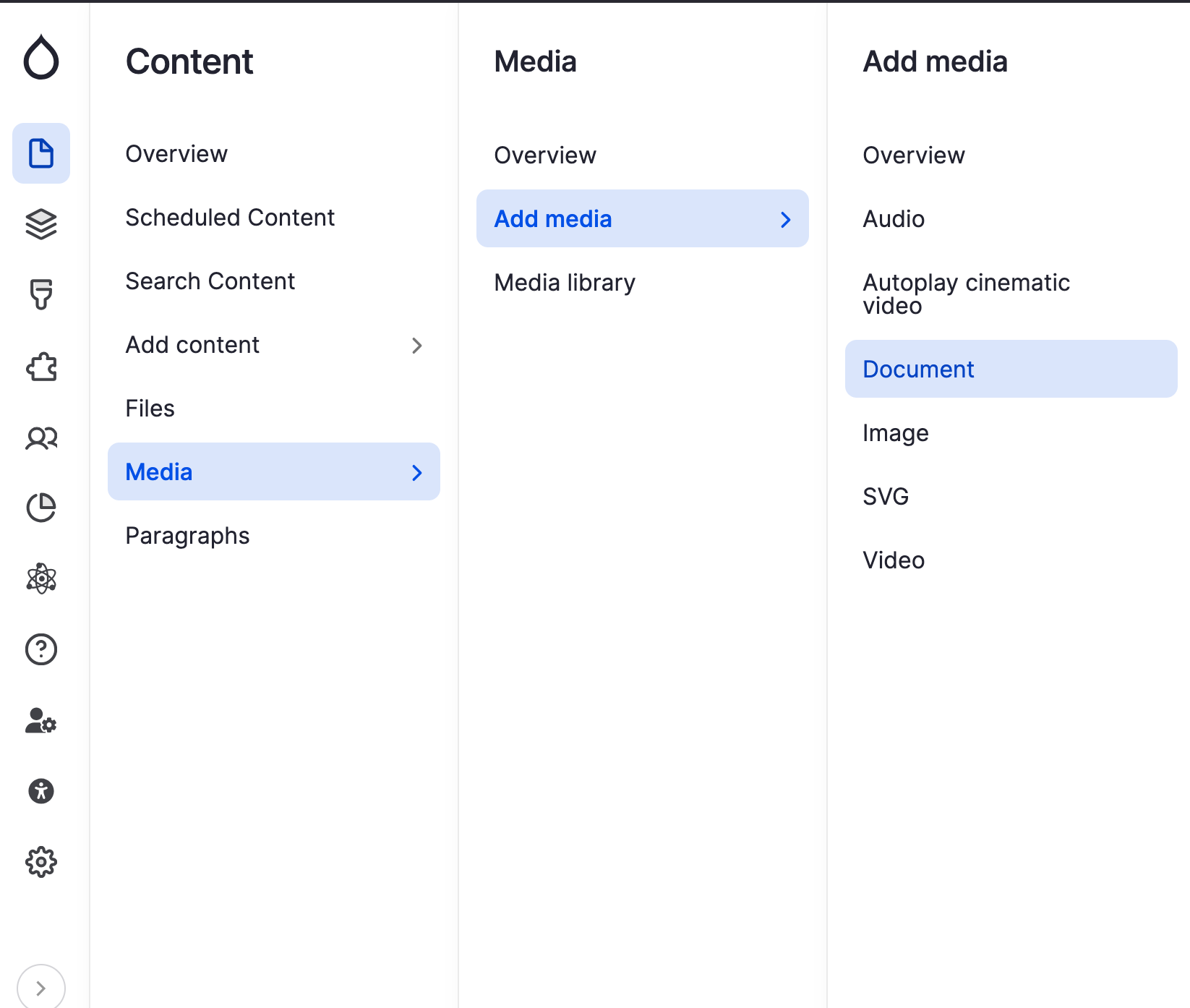
- Go to Content > Media > Add Media, then select Document.
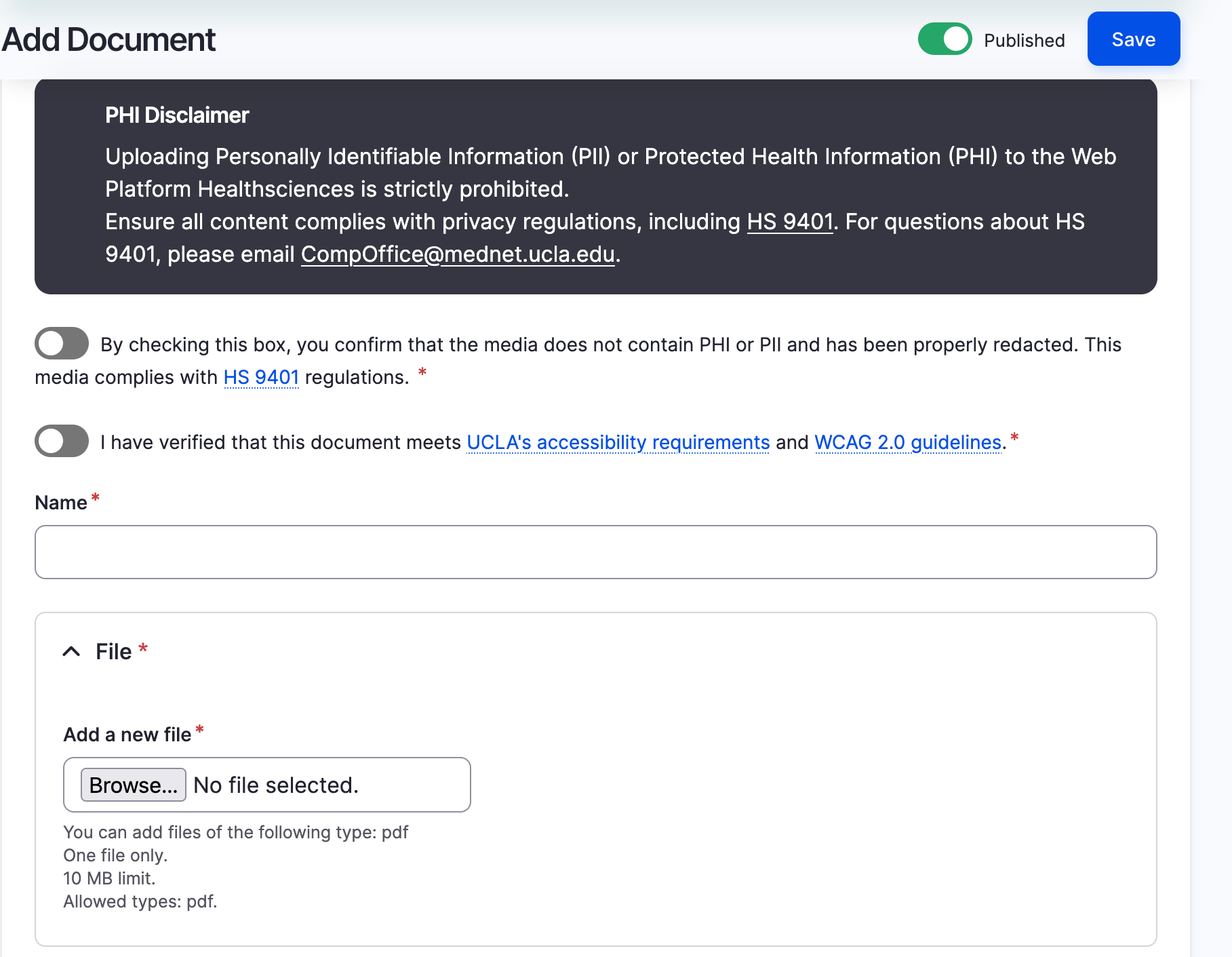
- Upload your document, add a name, and complete the required fields.
- Click Save.
- Open the page where the document will appear and add a Text Editor component.
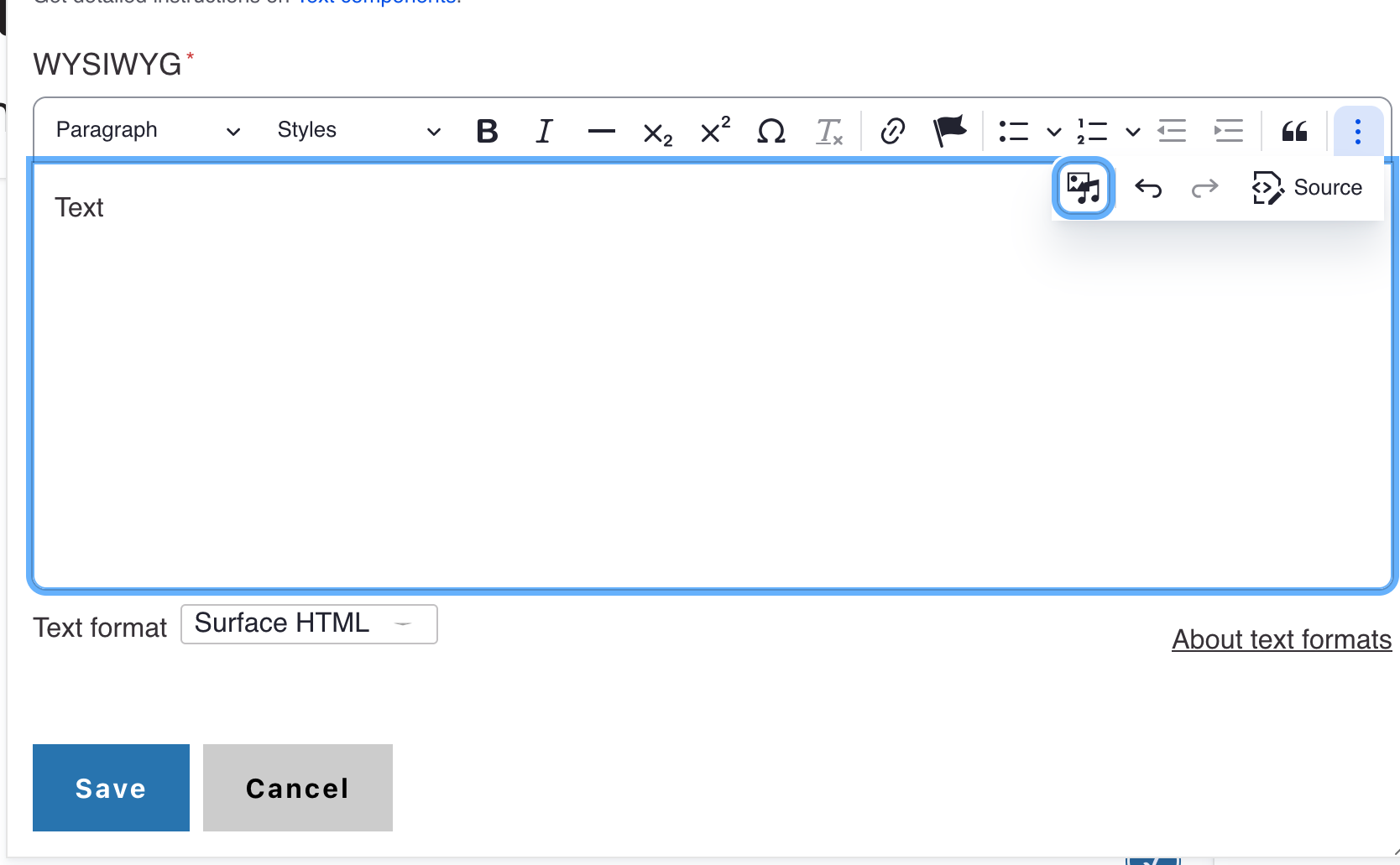
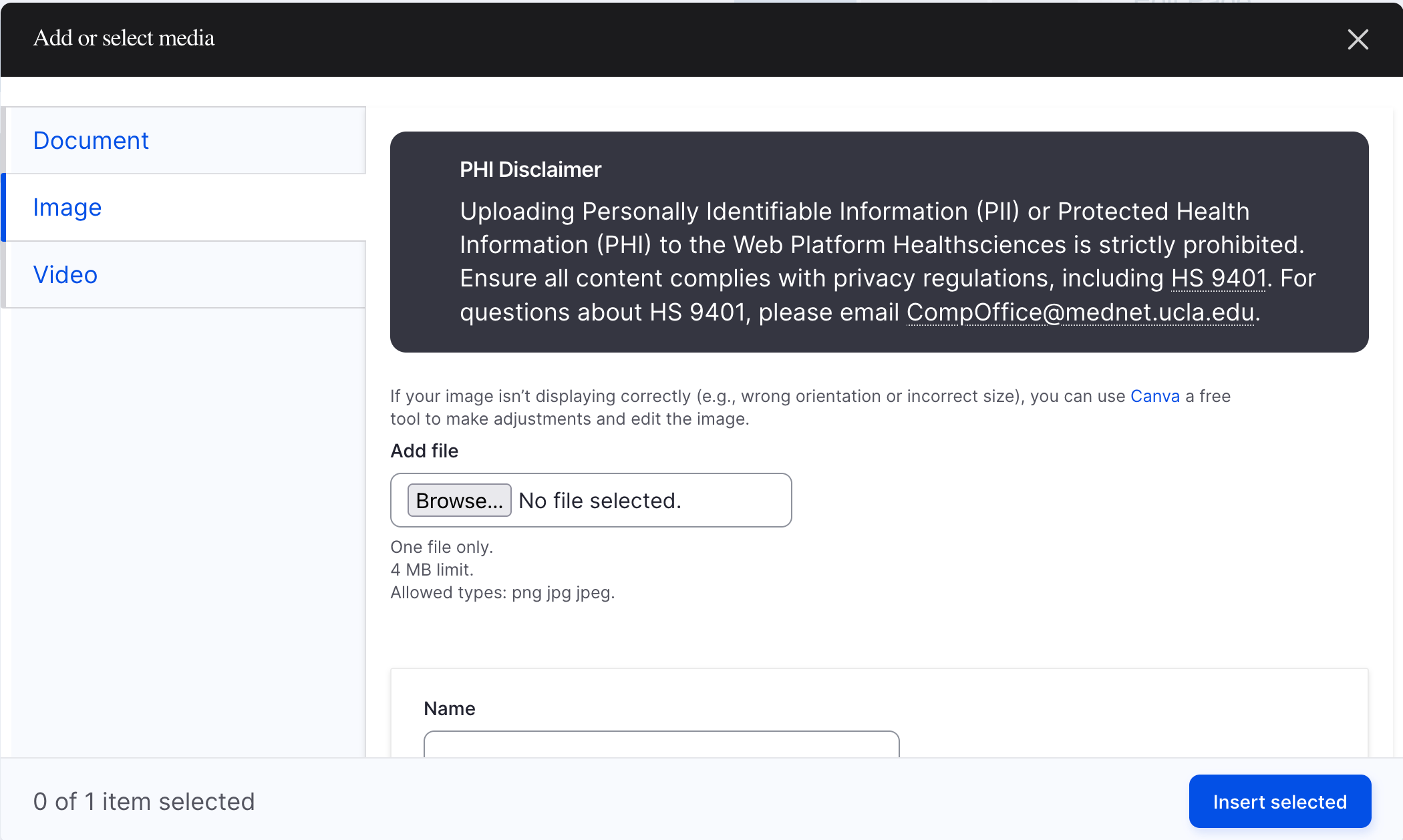
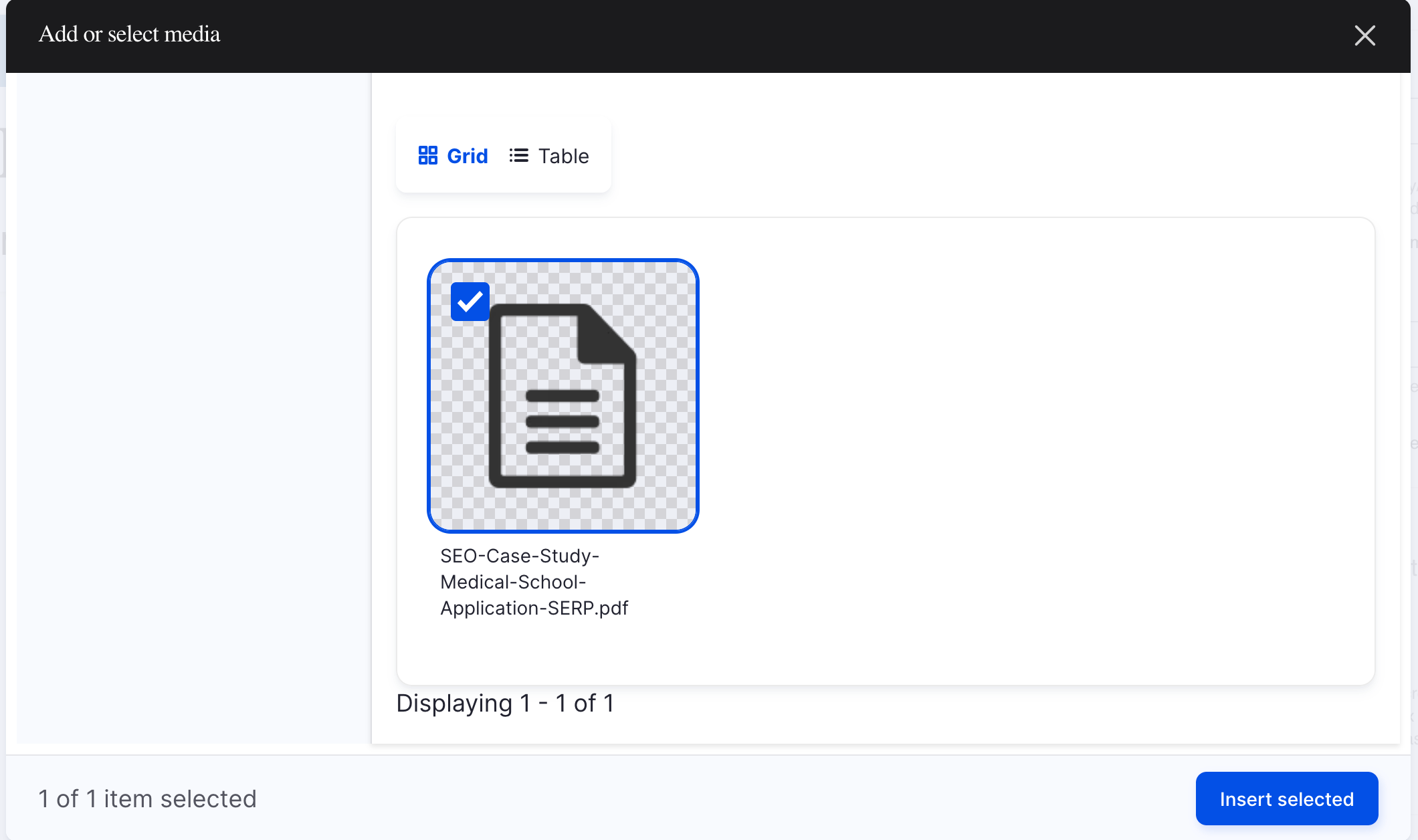
- In the text editor, select the Insert Media icon.
- Choose the Documents tab, select your document, then click Insert.
How to Link a File On A Page
To link a file to the content on your page:
- Go to the Administration panel and click the Content button
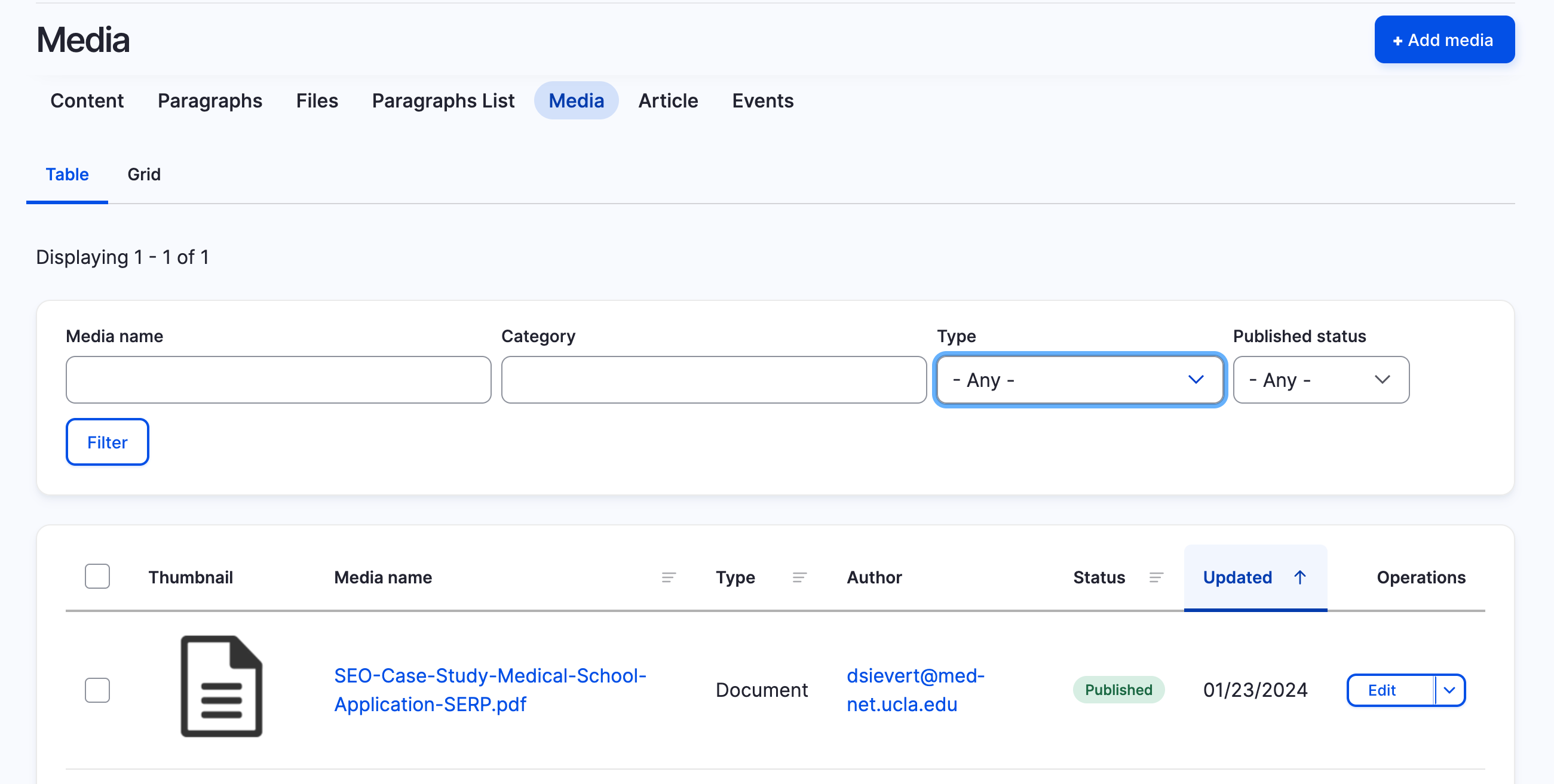
- Select the Media tab. This is where all media files are stored and managed
- Locate the file using the search option
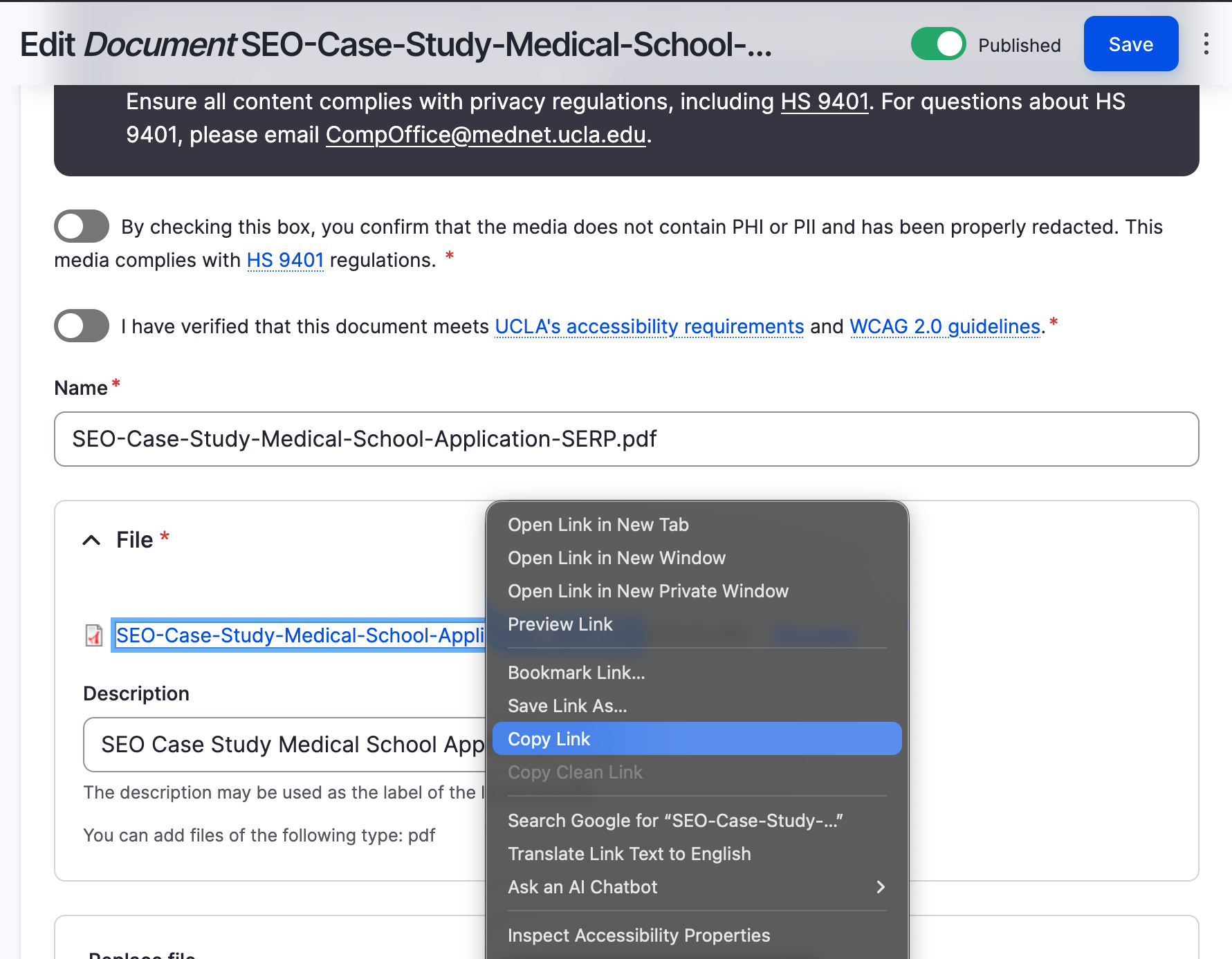
- Click on the file name link
- Right click on the file name and select the Copy link address option
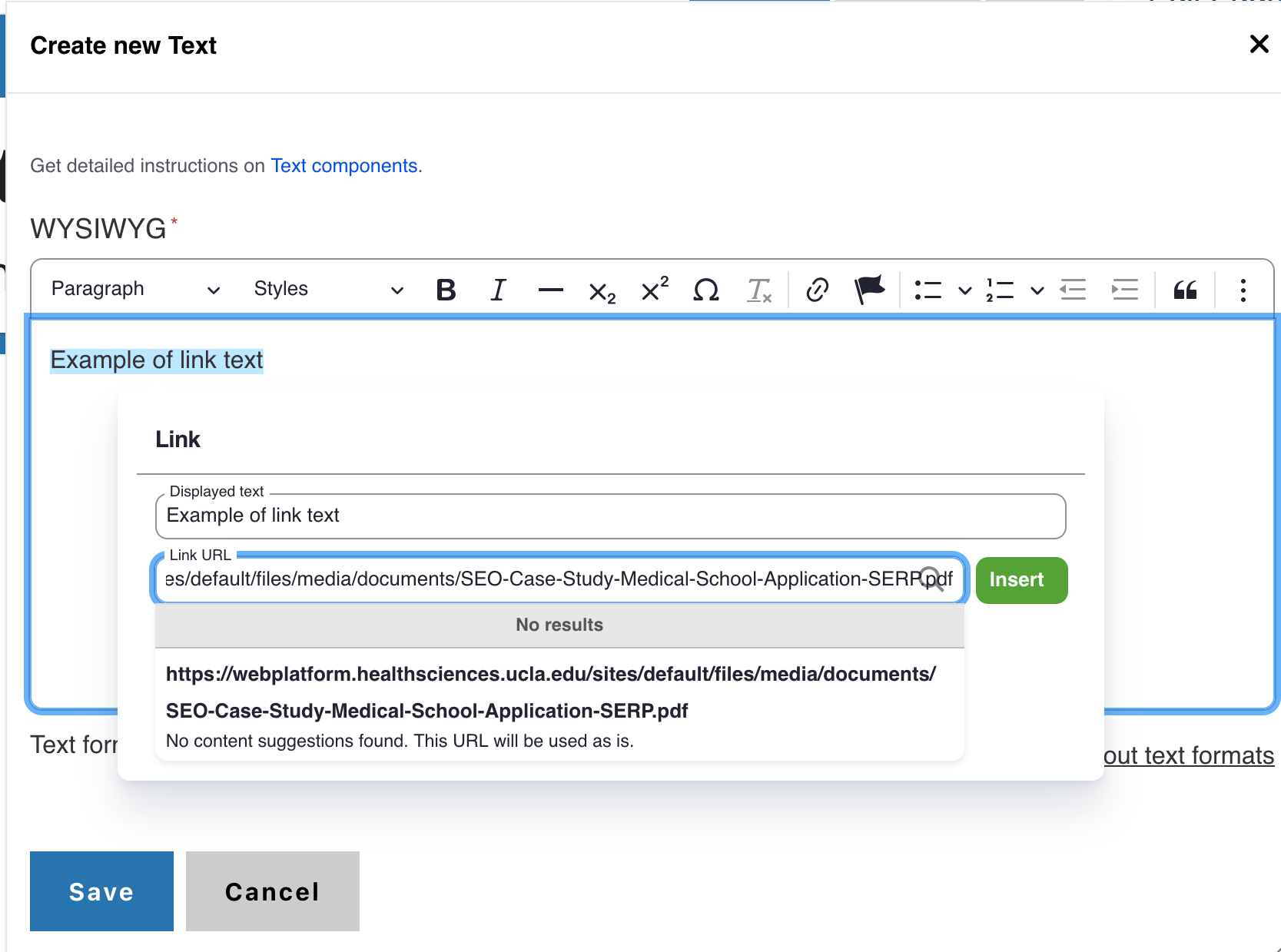
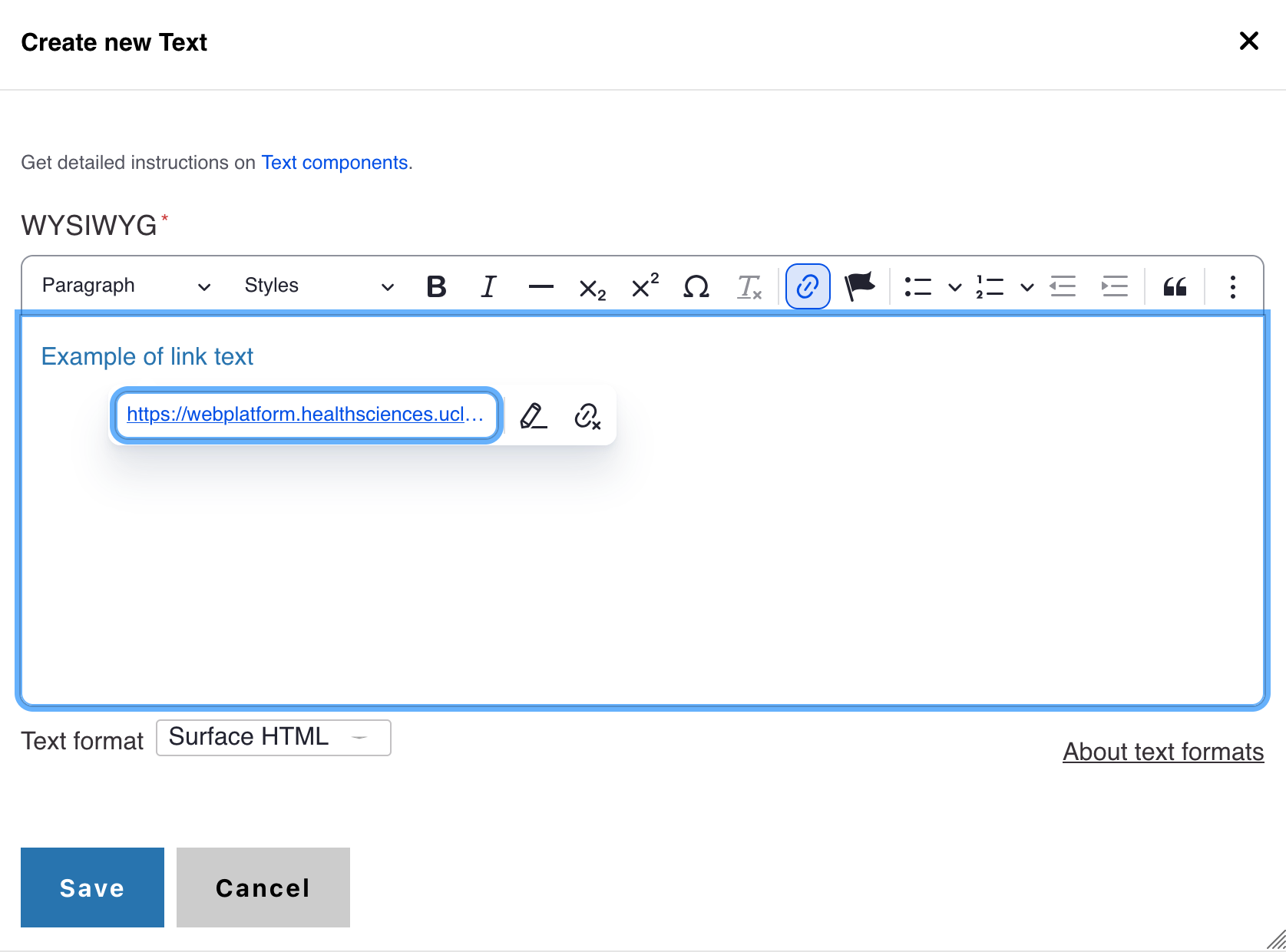
- Return to the page where the link is needed. Highlight the text where the file will be linked
- Click the link icon and insert
- Click Save.
- Publish the changes and confirm the link works