From Library - Reusable Content
Creating Components
What is a Reusable Component?
If you would like to reuse a component on multiple pages, the instructions below review the steps. For users who previously used Layout Builder, this was called a Custom Reusable Block.
Step-by-Step Instructions
- Log in to your site.
- Hover your mouse over Content.
- Click Paragraphs.
- Click the + Add library item
- Add the Name of your reusable component.
Note: This is the name you will need each time you want to place the block. - Select the component that you want to use from the dropdown menu.
- Complete the necessary fields for your component.
- Scroll to the bottom of the page and click Save.


Placing a Reusable Component
- Go to the page where you want to place the component.
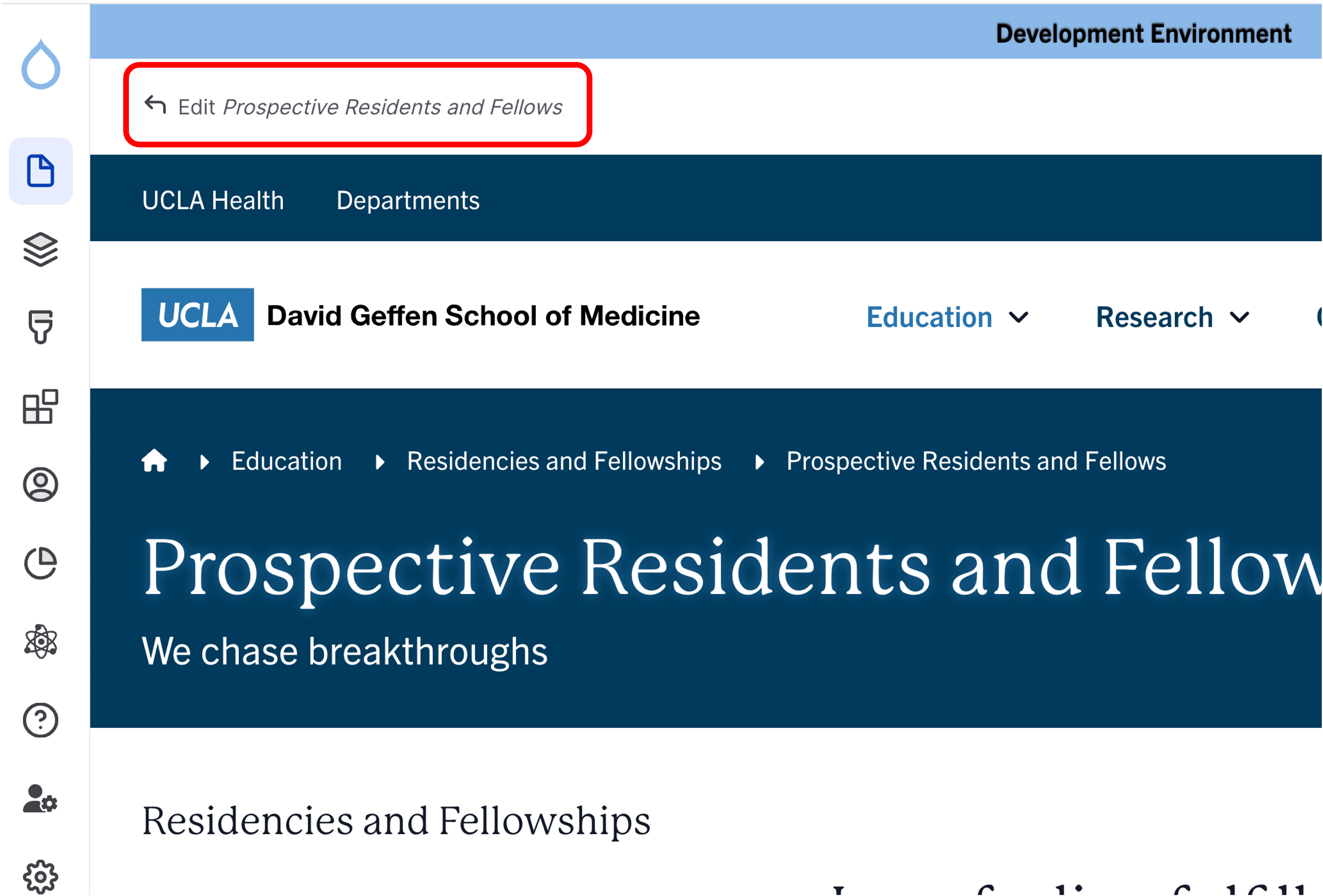
- Click Edit content.
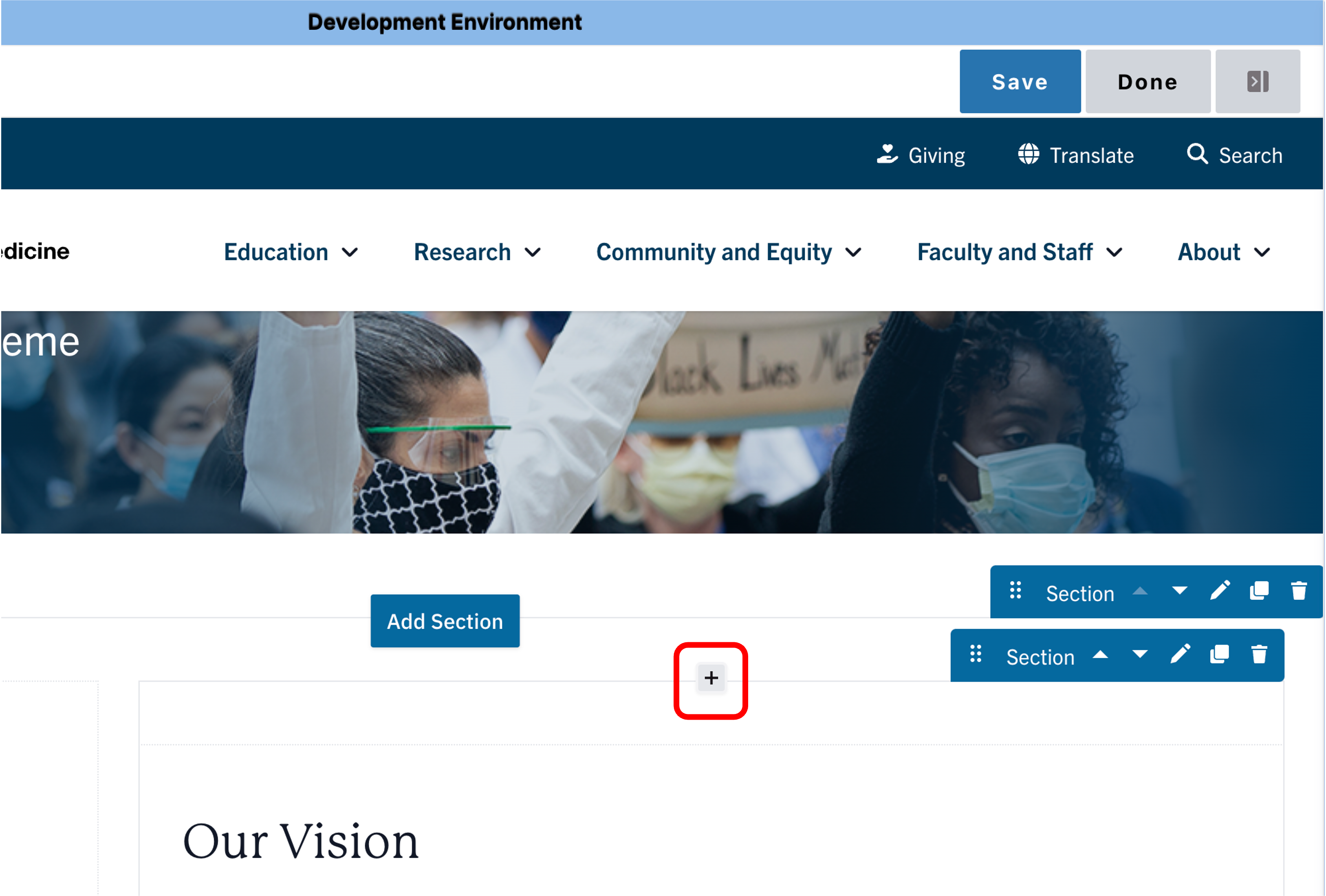
- Click the plus icon where you want to place the component.
- Select From Library, from the menu.
- Start typing the name that you gave to the content you created and select the applicable Reusable component.


Save
- Click Save.
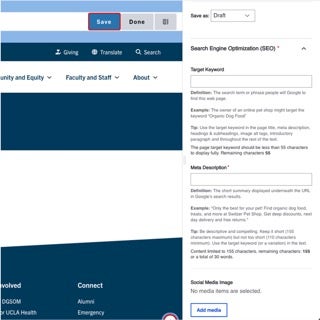
- Scroll to the top of the page and click Save.
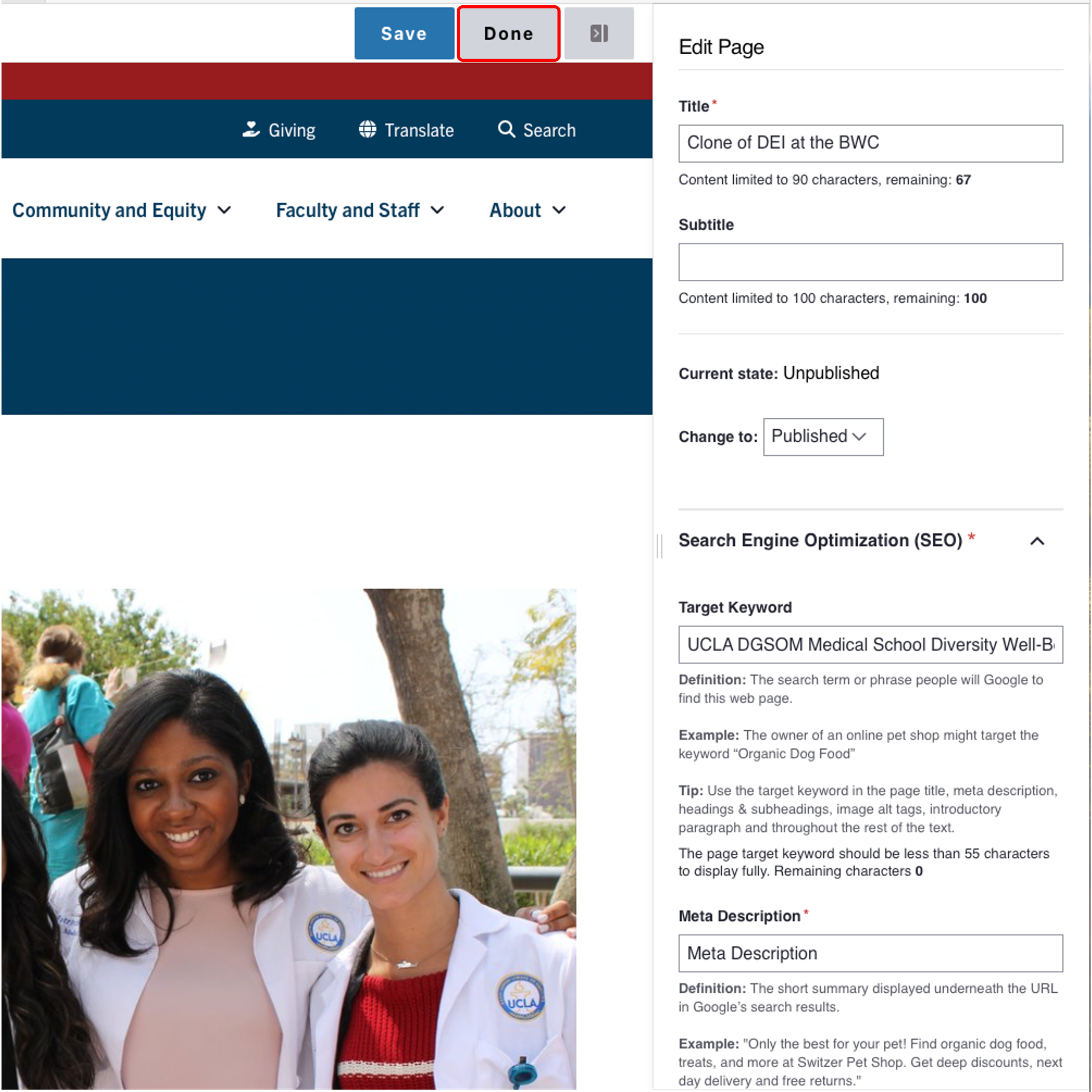
- Click the Done button beside the save button.
Note: This will display the page in the closest representation of how site visitors will view it. All links and actions that are disabled in editing mode will be functional now.