
CTA Link
Components
What is a CTA Link?
The CTA Link is our new, streamlined call-to-action component designed to be a visually appealing way to display links with an icon. The CTA Link displays the link in a card with an arrow to click the link (the only clickable part of the component).

Example of CTA Links
Brain Research Institute
UCLA-DOE Institute
Clinical and Translational Science Institute
Crump Institute for Molecular Imaging
Institution for Precision Health at UCLA
Molecular Biology Institute
Semel Institute for Neuroscience and Human Behavior
UCLA AIDS institute
UCLA Stein Eye Institute
Step-by-Step Instructions
1. Add a Cards Grid Section
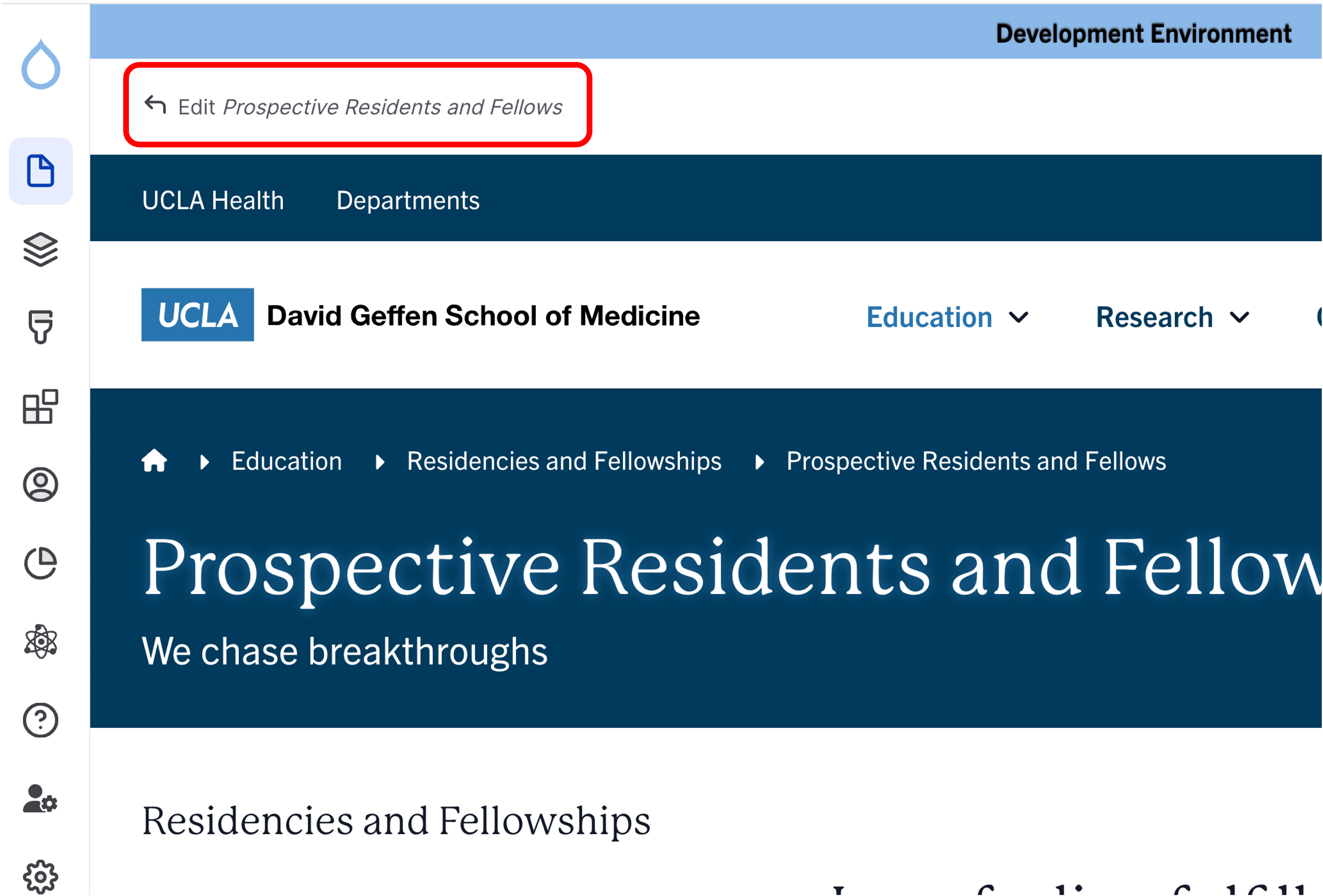
- Click the Edit link at the top of the page.
- Place your cursor where you want the CTA links to appear.
- Click the plus icon.
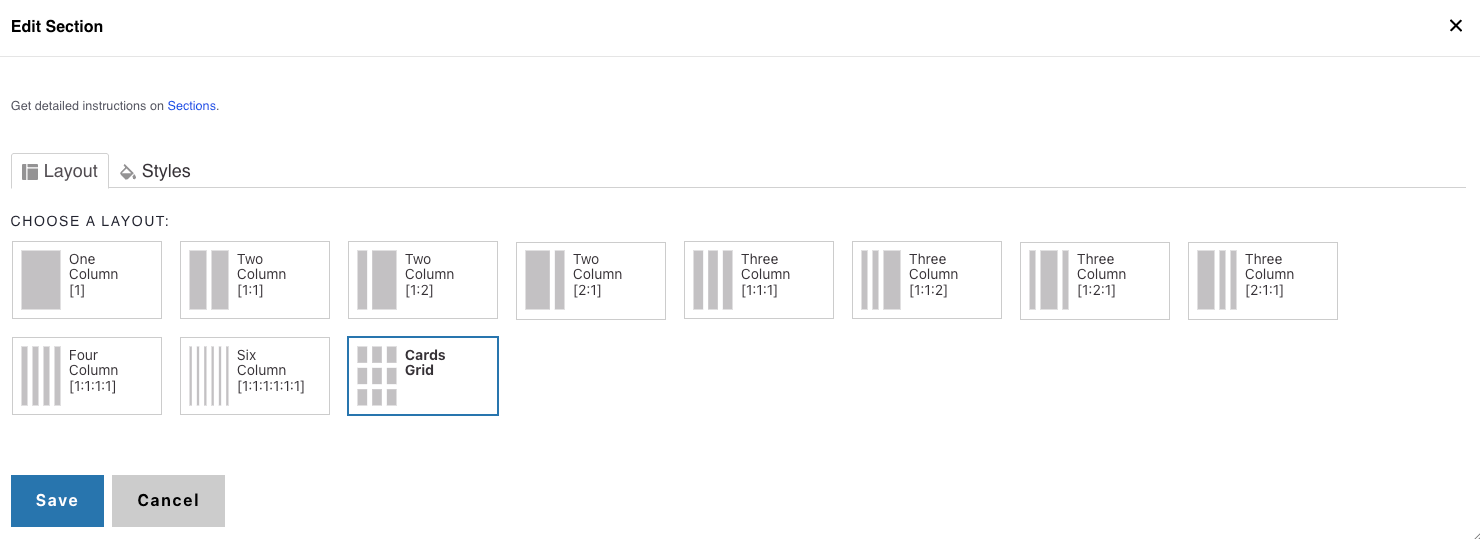
- Select Cards Grid.

2. Add a Section Header (Optional)
- (Optional) Add a Section Header above your CTA links.
- (Optional) Add a teaser that provides supporting context.
- In Styles, set the header level to H2.


3. Add CTA Links
- Click the "plus" under the header field
- Select CTA link from the list of components which can be found under the Call to Action group
- Add desired link text and URL
- Note: Title text is limited to 70 characters



4. Styles
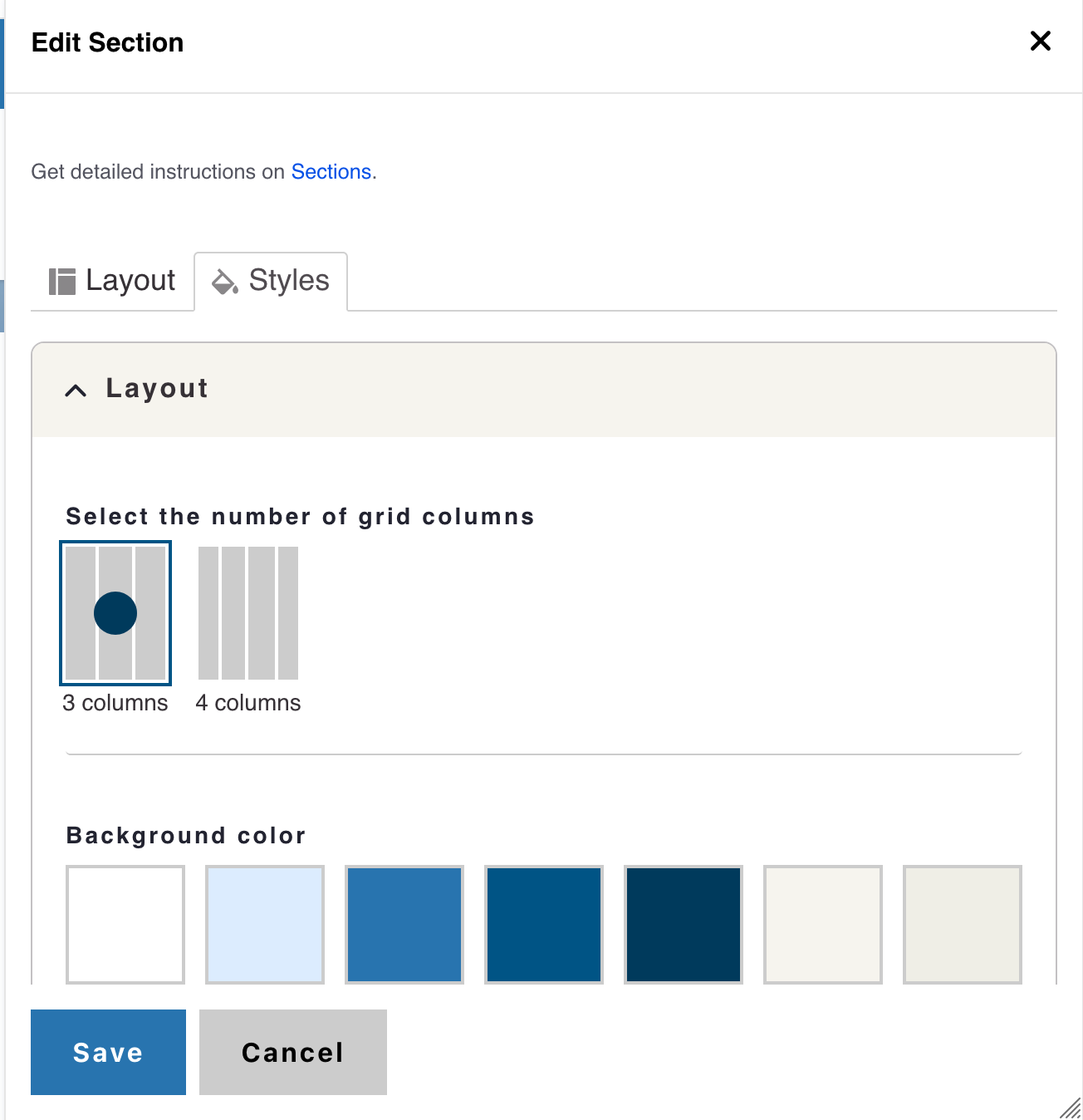
- Click the Styles tab then click the Layout to expand the section
- The layout field set expands showing options for Grid Columns
- The default state of columns is three columns (recommended for link sets of 3, 6, 9, 12, 15, 18, and 21)
- If desired, you can change the Grid columns to four columns (recommended for link sets of 4, 8, 10, 14, 18, 22)
Alert
Background Colors
We recommend working with a Site Administrator to apply background colors to CTA Links when you need them to stand out.
Note: Background colors can be applied only within One Column and Card Grid sections.
How to Apply a Background Highlight
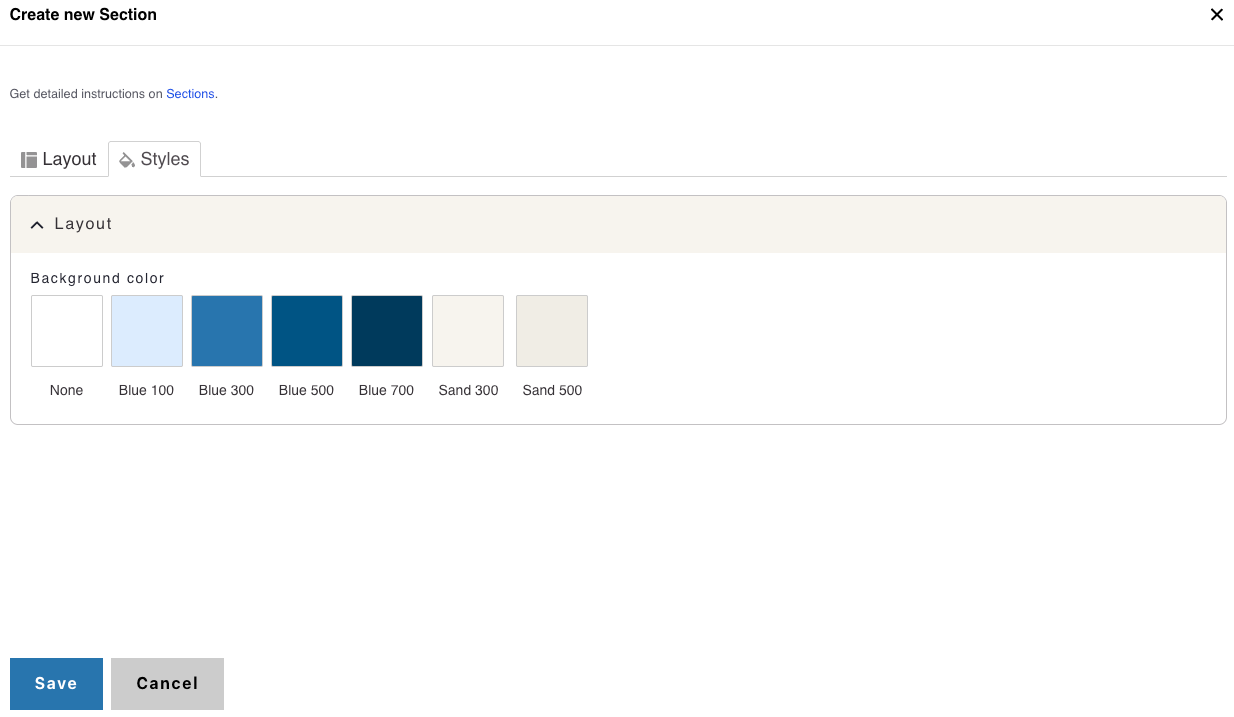
- Open the Styles tab.
- Choose one of the approved background colors:
- None (default)
- Blue 100
- Blue 300
- Blue 500
- Blue 700
- Sand 300
- Sand 500
Example of CTA Links
Brain Research Institute
UCLA-DOE Institute
Clinical and Translational Science Institute
Crump Institute for Molecular Imaging
Institution for Precision Health at UCLA
Molecular Biology Institute
Semel Institute for Neuroscience and Human Behavior
UCLA AIDS institute
UCLA Stein Eye Institute
Example of CTA Links
Brain Research Institute
UCLA-DOE Institute
Clinical and Translational Science Institute
Crump Institute for Molecular Imaging
Institution for Precision Health at UCLA
Molecular Biology Institute
Semel Institute for Neuroscience and Human Behavior
UCLA AIDS institute
UCLA Stein Eye Institute
Example of CTA Links
Brain Research Institute
UCLA-DOE Institute
Clinical and Translational Science Institute
Crump Institute for Molecular Imaging
Institution for Precision Health at UCLA
Molecular Biology Institute
Semel Institute for Neuroscience and Human Behavior
UCLA AIDS institute
UCLA Stein Eye Institute
Example of CTA Links
Brain Research Institute
UCLA-DOE Institute
Clinical and Translational Science Institute
Crump Institute for Molecular Imaging
Institution for Precision Health at UCLA
Molecular Biology Institute
Semel Institute for Neuroscience and Human Behavior
UCLA AIDS institute
UCLA Stein Eye Institute
Example of CTA Links
Brain Research Institute
UCLA-DOE Institute
Clinical and Translational Science Institute
Crump Institute for Molecular Imaging
Institution for Precision Health at UCLA
Molecular Biology Institute
Semel Institute for Neuroscience and Human Behavior
UCLA AIDS institute
UCLA Stein Eye Institute