Introducing the New CTA Card Component

As part of our ongoing brand refresh and design enhancements, we’re excited to introduce the CTA Card—a flexible, visually engaging component designed to improve usability and emphasize key actions across your website.
To align with our updated visual identity and improve consistency across the platform, we will phase out the Call to Action component. We encourage all site owners and content editors to begin using the CTA Card for any call-to-action needs going forward.
CTA Card Layouts and Styles
The CTA Card can be used in two ways:
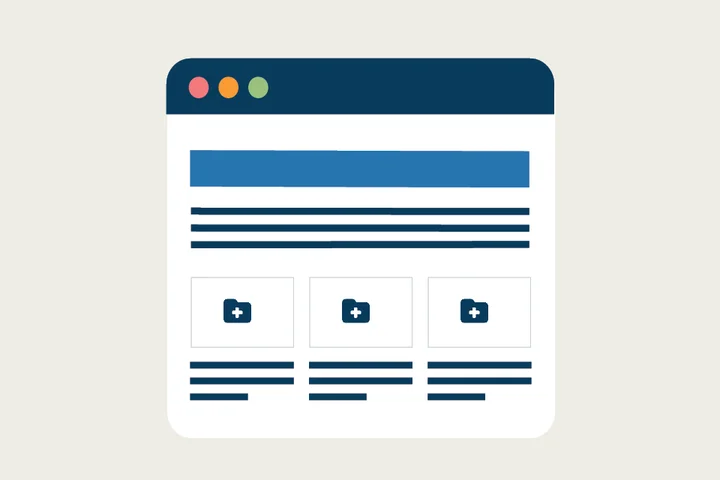
- As part of a Card Grid on top-level navigation pages
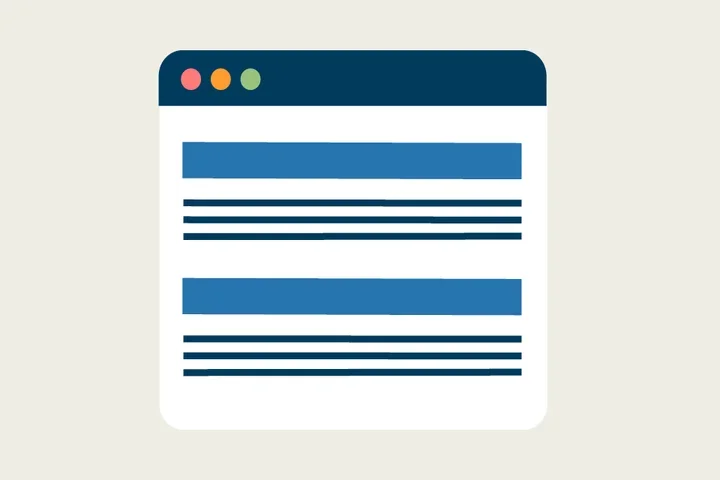
- As a standalone Wide CTA to draw attention to important actions or next steps
CTA Card Grid

Wide CTA Card

When to Use a CTA Card
Use the CTA Card when you need to:
- Provide clear navigational choices on top-level pages using a Card Grid layout
- Highlight a key action or resource with a prominent standalone CTA
- Present multiple related actions in a clean, scannable format
Elements of CTA Cards
Each CTA Card includes:
- Title – A short, action-oriented heading
- Teaser – A brief description that helps users understand the action or destination
- Button – A clear, accessible call-to-action link
These fields are required, ensuring every CTA Card maintains a consistent visual layout.
When used as a wide CTA, the card expands horizontally within a one-column layout, creating stronger visual emphasis. This style is ideal for high-priority actions that need to stand out as a single, prominent call to action.
When CTA Cards are placed in a Card Grid layout, the grid is typically introduced with a Section Header—a new component used on top-level pages. Section Headers for Card Grids normally use H2, and when you place CTA Cards under that H2 Section Header, you can change the CTA Card titles to H3. Adjusting header levels in this way maintains proper page hierarchy
What This Means for You
As part of this transition, we’ve removed the gray background from the current Call to Action component to better align with our updated brand identity.
As we phase out the older Call to Action, we recommend:
- Replacing existing Call to Action components with the new CTA Cards
- Using CTA Cards for any new call-to-action elements you create
- Organizing multiple CTAs into a Card Grid layout when appropriate, especially on top-level navigation pages
How to Add CTA Cards
The CTA Card can be added in two formats: within a CTA Card Grid or as a standalone CTA Card. Follow the steps below to create each layout.
CTA Card Grid (Multiple Call to Actions)
A CTA Card Grid is a layout option where multiple CTA (Call to Action) Cards are arranged in a structured grid. It’s commonly used on top-level navigation pages to present users with a clear set of choices or actions.
1. Add a Cards Grid Section
- Click the Edit link at the top of the page.
- Place your cursor where you want the CTA cards to appear.
- Click the plus icon.
- Select Cards Grid.
2. Add a Section Header
- Add a Section Header above your CTA cards.
- (Optional) Add a teaser that provides supporting context.
- In Styles, set the header level to H2.
3. Add CTA Cards
- Place your cursor below the Section Header and add a CTA Card.
- Add a Title (max 70 characters).
- (Optional) Add a Teaser (max 300 characters).
Button
- URL: Start typing the title of a piece of content to select it, or enter an internal path (e.g., /node/add) or an external URL.
- Link Text: Provide a clear, contextual action (e.g., “Visit the ABC Lab”).
- Avoid generic phrases like Learn more or Read more.
- Max 45 characters.
Styles
- In the Styles tab, select H3 if the cards appear under an H2 Section Header.
- Adjust the header level as needed based on page hierarchy.
4. Add Additional CTA Cards
Add at least two more CTA Cards using the steps above. For the best visual layout, we recommend adding cards in sets of three (3, 6, or 9).
Wide CTA Card (One Call to Action)
Use these instructions when placing a single CTA Card on a one-column section.
1. Add a One Column Section
- Click the Edit link at the top of the page.
- Move your cursor where you want to place the CTA Card.
- Click the plus icon.
- Select One Column.
2. Add the CTA Card
- Move your cursor within the One Column section.
- Click the plus icon and select CTA Card.
- Add a Title (max 70 characters).
- (Optional) Add a Teaser (max 300 characters).
Button
- URL: Start typing the title of a piece of content, or enter an internal path or external URL.
- Link Text: Provide a clear, contextual action (e.g., “Visit the ABC Lab”).
- Avoid generic link phrases.
- Max 45 characters.
Styles
- In the Styles tab, select H2 since the CTA Card is used as a standalone call to action.
- Set Card Width: Wide
Background Colors
We recommend working with a Site Administrator to apply background colors to CTA Card Grids and standalone CTA Cards when you need them to stand out.
Note: Background colors can be applied only within One Column and Card Grid sections.
How to Apply a Background Highlight
- Open the Styles tab.
- Choose one of the approved background colors:
- None (default)
- Blue 100
- Blue 300
- Blue 500
- Blue 700
- Sand 300
- Sand 500
Implementation Timeline
The new CTA Card component will launch on December 15. We encourage all site editors to review the new process ahead of December 15 to ensure a smooth transition.
Additional Resources
Co-working Sessions
Need help creating CTA cards and adding background colors? Register for the next Co-working Session for support.