
New Background Colors
Additional Style Options

As part of our recent brand update, we’ve expanded the background color options to provide greater flexibility and elevate the overall look and feel of our websites. This enhancement allows you to highlight important content sections—such as calls to action, announcements, or instructional details—using approved background colors that align with our updated visual identity.
Available Background Colors
When styling a One Column Section, you can choose from the following brand colors:
- None (default)
- Blue 100
- Blue 300
- Blue 500
- Blue 700
- Sand 300
- Sand 500
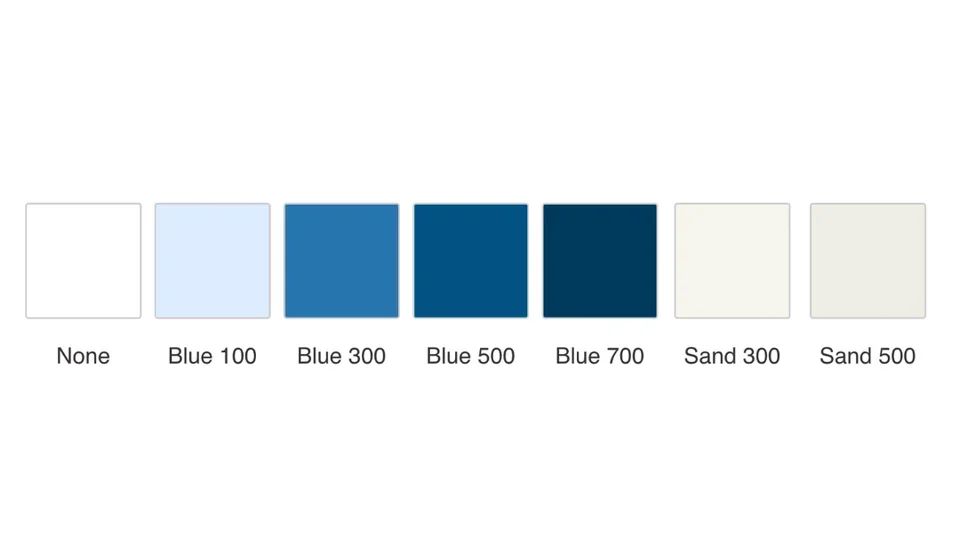
These options offer a range of colors—from subtle accents to bold highlights—so you can choose the right level of emphasis for your content.
Rules & Restrictions
To ensure consistent design and proper governance of brand usage, the following rules apply:
Only Site Administrators Can Apply Background Colors
The ability to modify background colors is restricted to Site Administrators. This ensures that brand colors are used intentionally and appropriately across all pages, preserving the integrity of the updated design system.
One Column and Card Grid Sections Only
Background color selection is limited exclusively to One Column and Card Grid Sections. This constraint helps maintain visual consistency and prevents unpredictable layouts in more complex designs.
Default Background Colors Are Always White
All sections and components begin with a white background by default.As part of the brand update, we have removed legacy default background colors from several components, including:
- CTA Banner
- Call to Action
- Article Highlight
- Event Highlight
These components will now appear on a clean, white background unless a Site Administrator applies a section background color intentionally.
How to Apply a Background Color
- Navigate to the page you want to edit and click Edit.
- Select the One Column or Cards Grid Section you want to highlight.
- Open the Styles tab in the right-hand panel.
- Locate the Background Color setting.
- Choose your desired color from the list of brand-approved options.
When to Use Section Background Colors
Use background colors sparingly and intentionally on top-level pages. A well-placed highlight can help:
- Emphasize important actions or messages
- Break up long pages with visually defined sections
- Reinforce the updated brand aesthetic
Implementation Timeline
The expanded brand color options will be available on December 15.
Additional Resources
Co-working Sessions
Want to add color backgrounds to your website? Register for the next Co-working session.
Register for Co-working Sessions